Note: this information is primarily useful to users who are using the Crowdsignal site directly. If you are using a Crowdsignal plugin, please see the documentation here:
Note for WordPress.com users: Crowdsignal blocks are built-in to the WordPress.com editor. Please see the Surveys, Polls, and Quizzes documentation for more information.
When you login to Crowdsignal, you’ll se your user dashboard. The dashboard acts as your central control panel, allowing you to manage your account, organize your data and perform various tasks.

Create New Content
To create a new survey, poll, rating, or quiz, click on Create New, and select your preferred type.
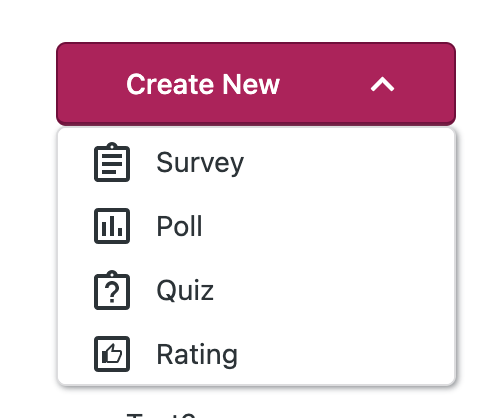
For more details about creating content using each of those, please see:
Organizing your Content with Folders
You can create folders to organize your content. Click on Create New Folder.
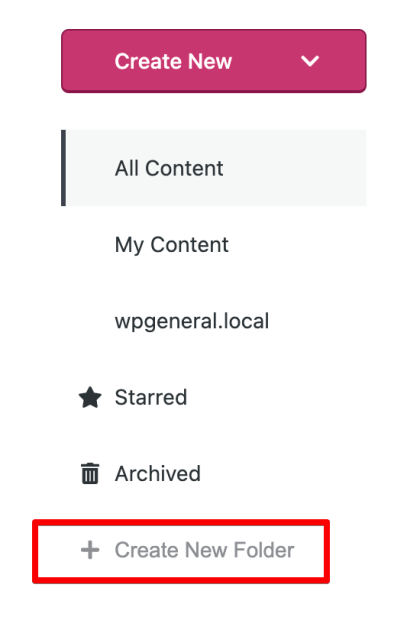
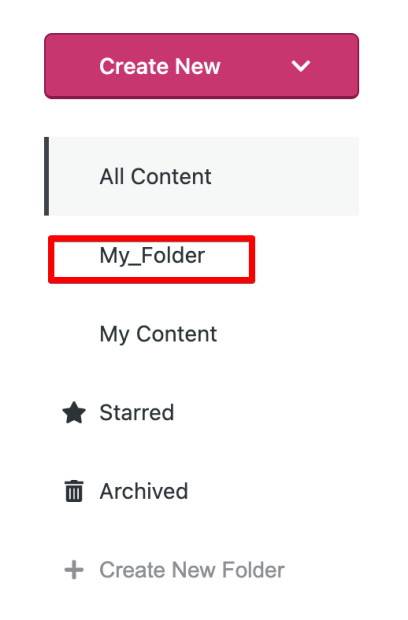
Type in your folder name and hit Enter. The new folder will now appear in the left-hand menu:
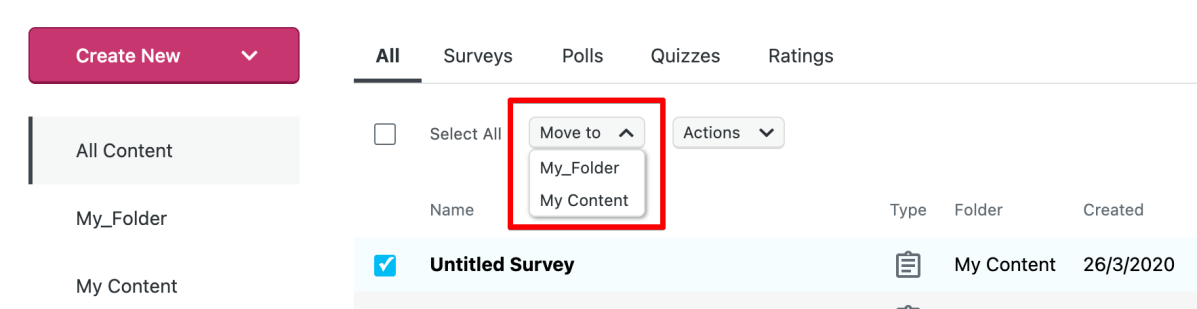
To add content to a folder, click the checkbox next to the item(s) you’d like to move, then select the Move To dropdown to select the folder you’d like to move the item to.
To remove content from a folder, click on the folder name, then click the checkbox next to the item(s). Select the Actions dropdown, and select Delete:

You can also open , close, star, and unstar content from the Actions dropdown.
Editing and Deleting Folders
To change the name of the folder, simply click on the folder, then click on the Edit button next to the Folder name.
To delete the entire folder, click on the folder name and click on the Delete button.
NOTE: deleting a folder will also delete the contents of that folder. The contents will be removed and sent to the default Archived folder. Items are removed automatically from the Archived folder within 30 days.

Using the Dashboard for Quick Actions
On any item (polls, surveys, ratings, etc) viewable in your dashboard, you can perform a series of quick actions.
Hover your mouse over any item, and you’ll see additional options listed to the right. You can edit the item, see the results, share the poll or survey, star it. Starring an item is simply a way for you to mark it as important.

At the far right hand, you’ll see 3 vertical dots. Click on that to see even more options:

These options allow you to close or delete the item, or duplicate it.
Duplicating the item creates a new item withe same name, appended with ‘(Copy)’ so you can distinguish between the two.
Printing is an option only available for surveys, ratings ,and quizzes. It is NOT available to polls. This option allows you to print out a copy of the survey or other type in PDF format. This is often used when the creator would prefer their participants to have a hard copy of the survey.
 Crowdsignal