There are various ways to access the data you collect in your polls and they can all be found from the dashboard. Free users can only see a summary report, but Premium, Business, and Team users can access much more.
To see how respondents answered your poll, hover over the title of your poll in your dashboard and click Results:

Or when editing a poll, click in the navigation on the Results tab:
You’ll be taken to a summary report showing the results of your poll:

Export results
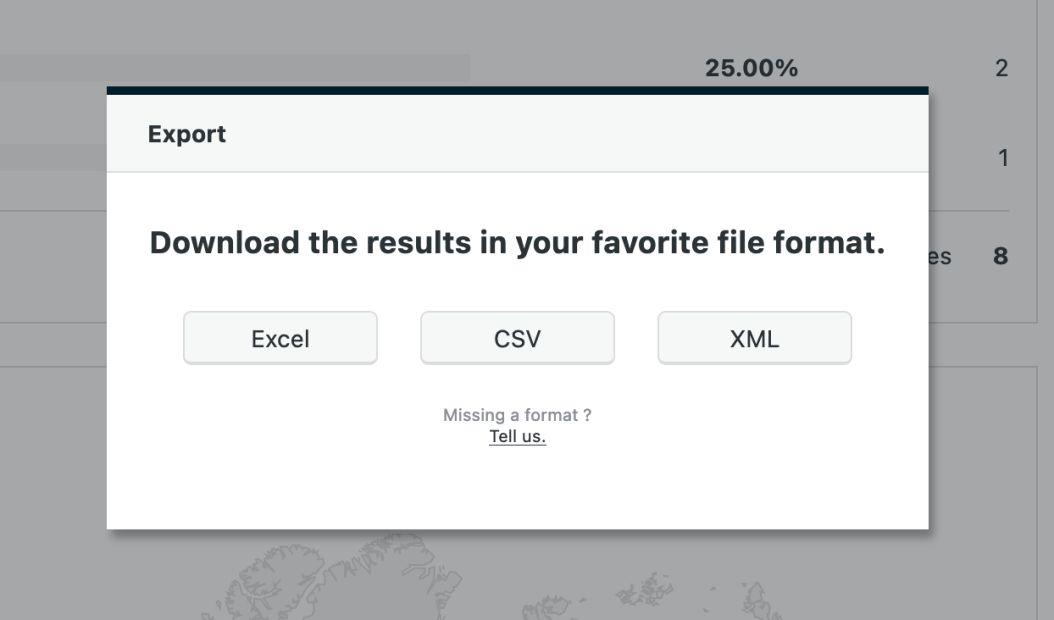
If you have a paid account, you may also export this data to a variety of formats.
Locations report
To learn where in the world your respondents are located, look into the Location section:
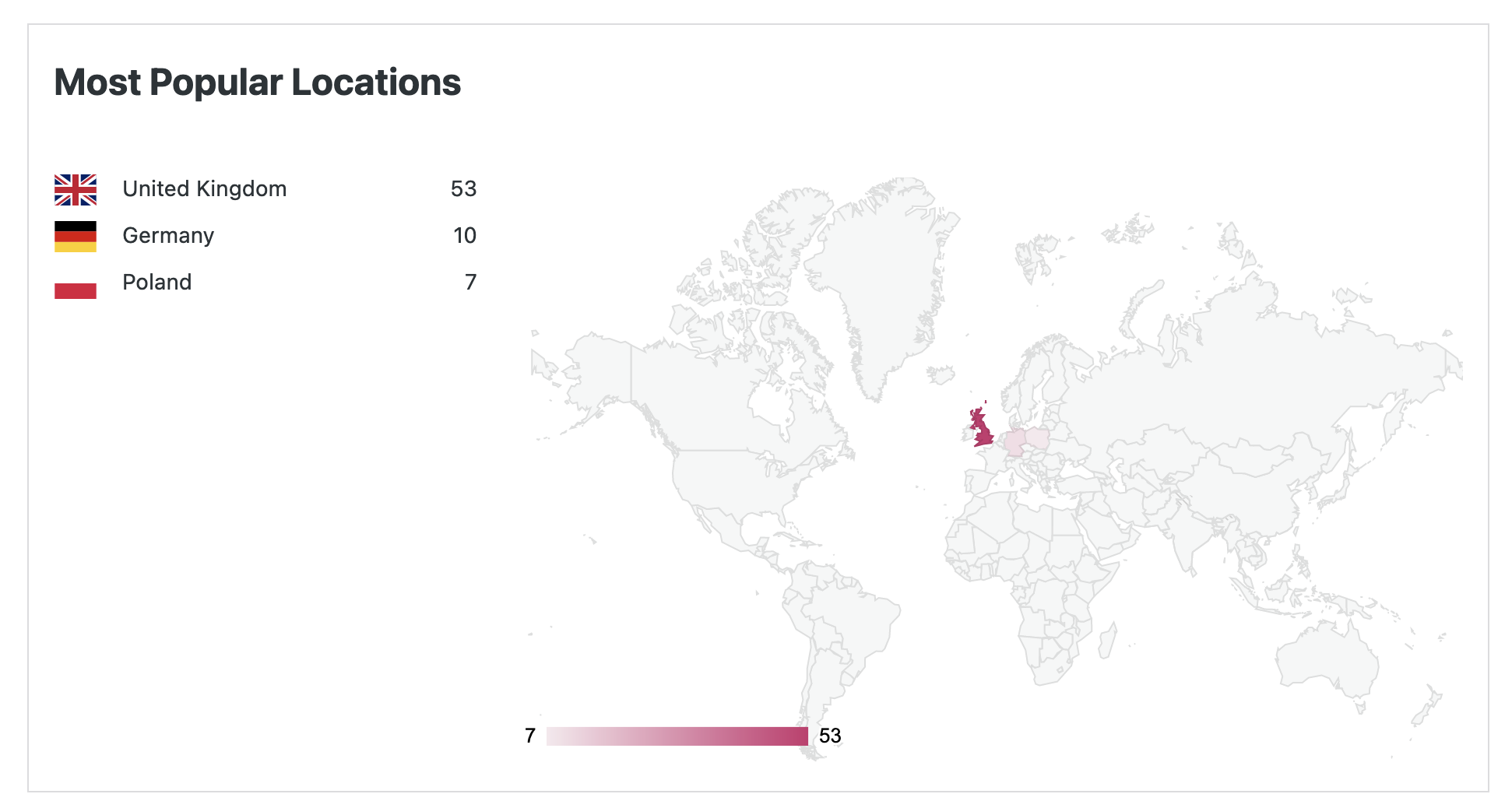
You’ll see a world map. Your respondents’ countries are highlighted. Darker colors indicate higher numbers of respondents from these countries:
Individual votes
To see each individual response to your poll, click on See all votes at the bottom of the right column with the “Latest Votes”:

You’ll see a list of your poll voters:

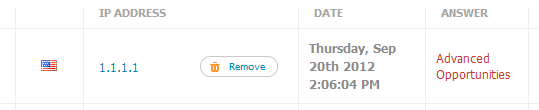
Individual votes can be removed on this page. Hover over the vote and a Remove button will appear. You will have to confirm the action when you delete the vote.
IP analysis
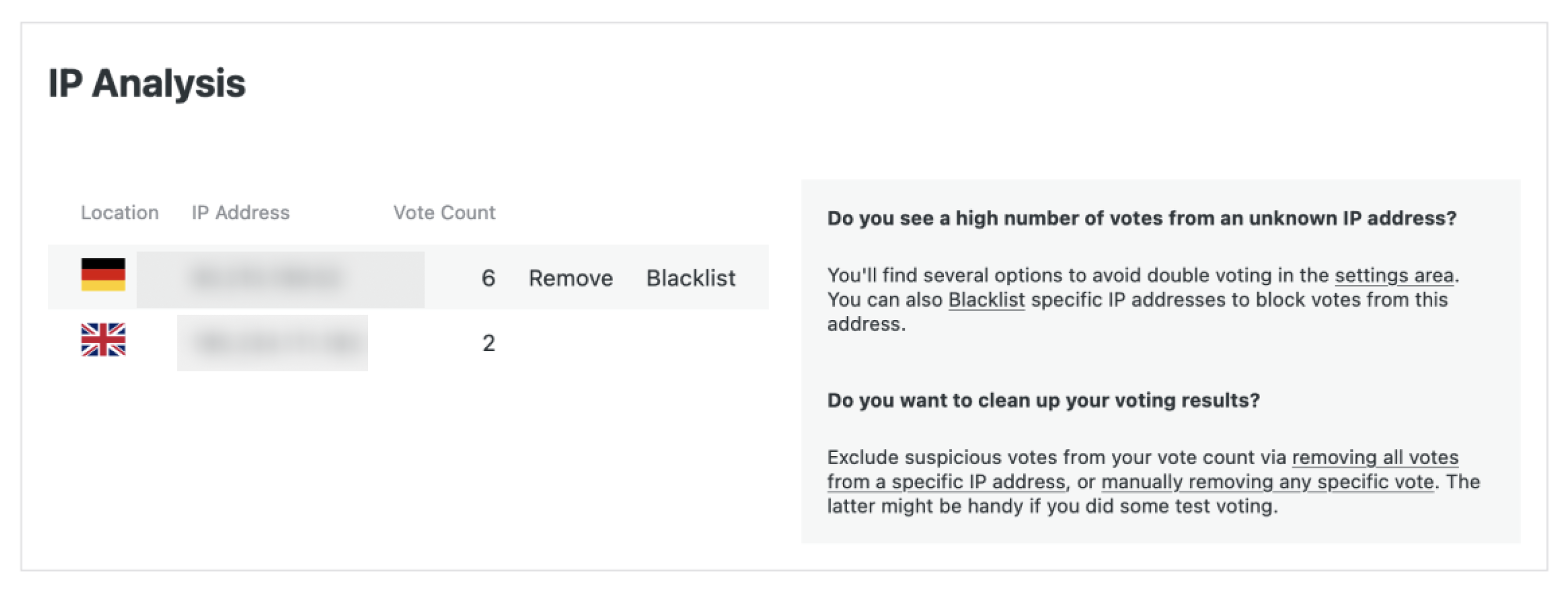
Hover over an IP address row and a menu will appear allowing the user to lookup, remove or blacklist the IP address.
When an IP address is blacklisted the votes from that IP are deleted and new votes from that IP are ignored. (Advanced tip: If you go to “See all votes -> IP Analysis” a new Blacklist menu item appears next to the Print and Export buttons. This allows you to list blacklisted IP addresses.
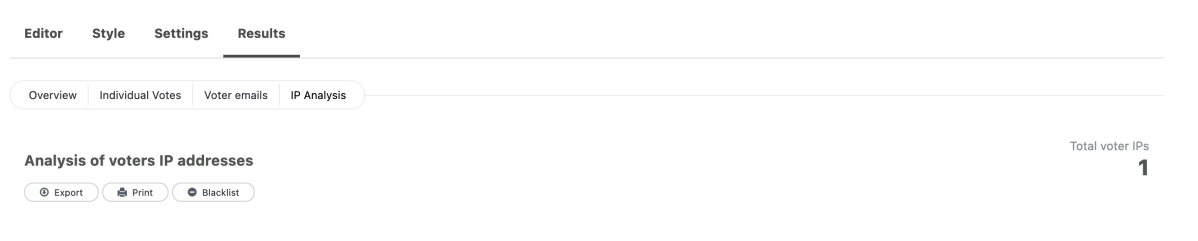
Removing the IP address from the blacklist will allow voting from that IP again but will not restore the deleted votes from that address.)
Analysis of voter IP addresses (Paid)
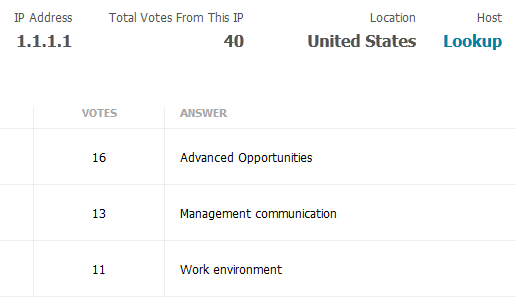
Click on any IP address on this page or on the Individual votes page for more information about that IP address:
Voter Emails (Paid)
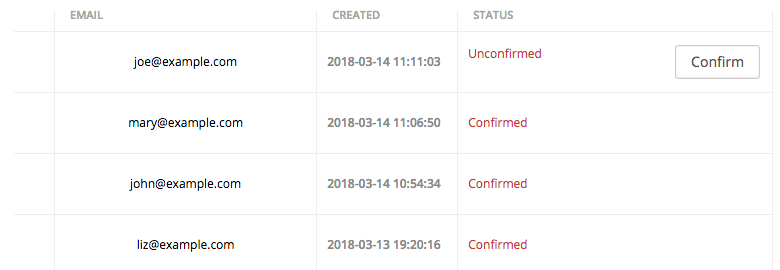
Polls where email address whitelisting is enabled will have an extra report titled, “Voter Emails”. This page lists the email addresses of voters who took part in the poll, along with their their confirmation status. By default it will be “Unconfirmed” but it will change to “Confirmed” when the link emailed to the poll voter is clicked. The poll owner can manually confirm the vote by clicking the Confirm button next to each unconfirmed vote.
 Crowdsignal