Archiving content
The steps to archive, or delete, content are identical for polls, surveys, quizzes, and ratings.
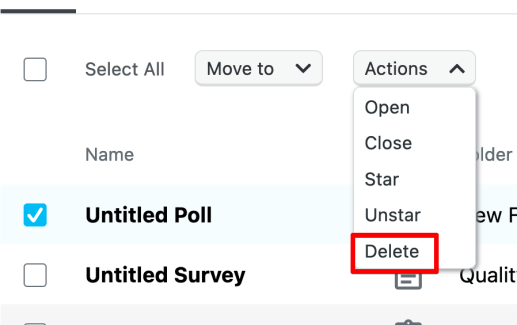
To Archive content, hover over the title of the piece of content you’d like to place in the Archived folder. Click on the 3 vertical dots on the right hand side, and select Delete.

You can also delete content via the Action dropdown, which is helpful when you have more than one poll, survey, etc., you’d like to delete all at once:
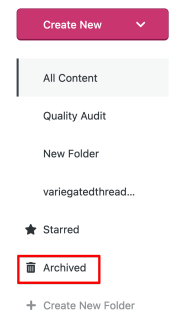
To see any content in the Archived folder, click on the Archived folder in your folders list:
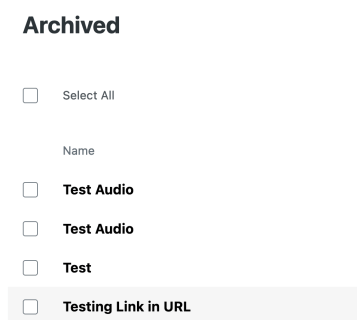
You’ll see the most recent piece of content you placed in Archived:
Restoring Archived content
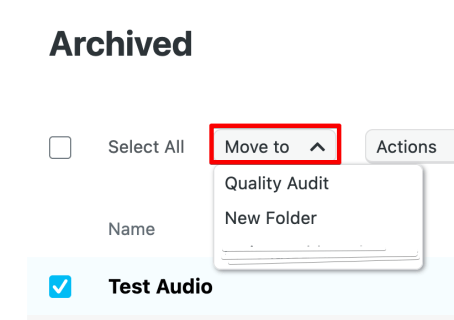
With the new dashboard, restoring trashed content is very simple. Simply click on the Archived folder in your folders list and select the piece of content you’d like to restore and select the destination folder on the Move to dropdown:
Deleting Archived content
When you are in the Archived folder, there is one action available to you: Delete Forever.
To delete a piece of content forever, hover over on the piece of content you wish to delete forever. On the Actions dropdown, select Delete Forever:
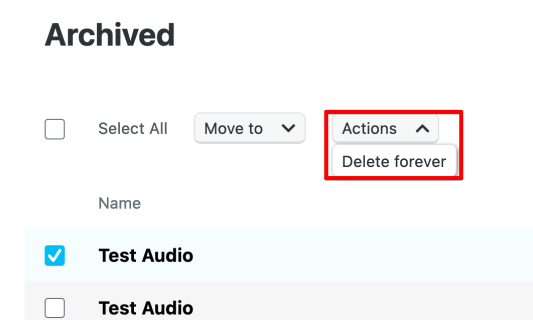
You can accomplish the same thing by hovering over the item and clicking on Delete Forever.
IMPORTANT: Note that if you choose to delete a piece of content from the Archived folder, it cannot be restored. Delete content from your Archived folder only when you are certain you no longer need it.
For Free users, deleting results, or content with results, does not restore those signals to your pool of 2500 signals.
Once you receive a response/signal, this will reduce your pool of free signals. For example, if you receive 100 signals on your free account, and you have 2,400 signals left, and then delete a poll with 10 signals, you still have 2,400 signals available, no matter how many responses you see on your results pages.
 Crowdsignal