If you’re new to editing in Crowdsignal, this guide will help you get familiar with what you see in the editor.
Overview
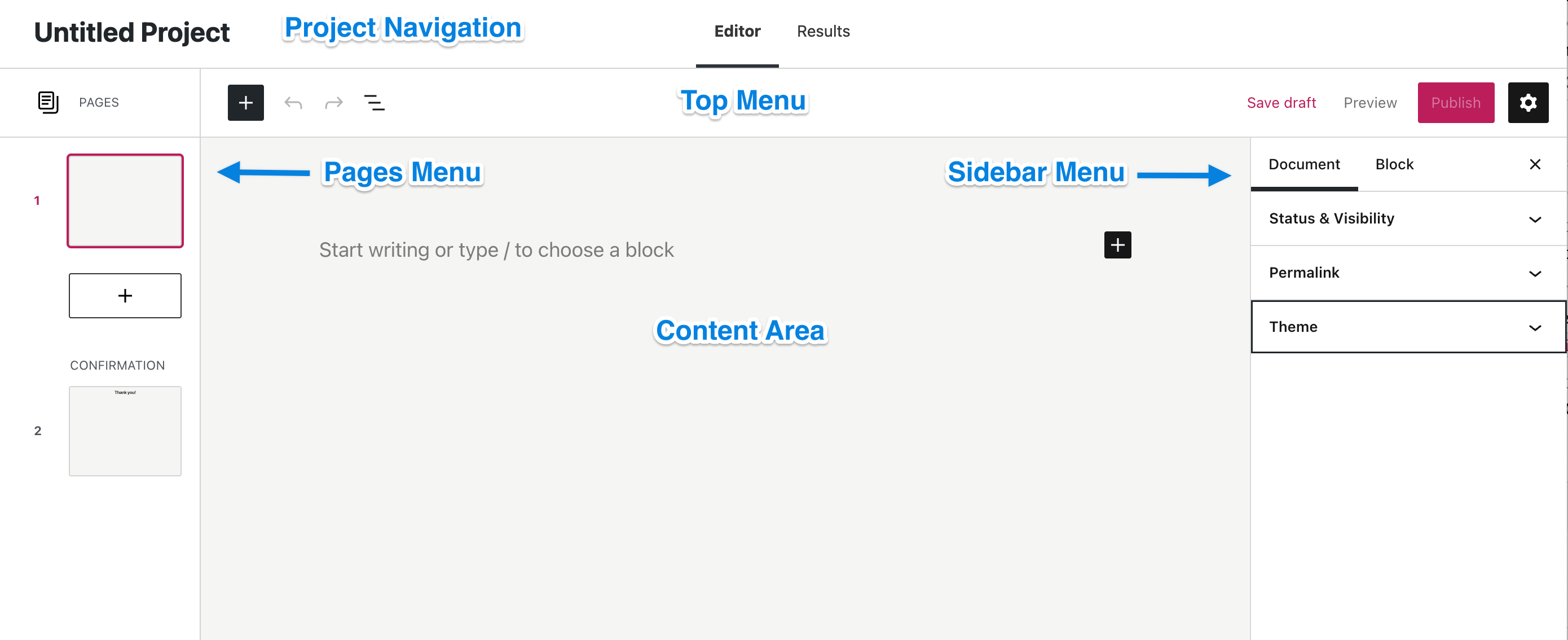
The Crowdsignal Editor is made up of five main areas:
- Project Navigation
- The top menu
- The sidebar menu
- The pages menu
- The content area
Project Navigation

Project Navigation is located at the top of the editor screen. This area lets you rename your project and switch between the editor and the results view of your project
The title can be edited to rename your project. Click the title and make your desired changes

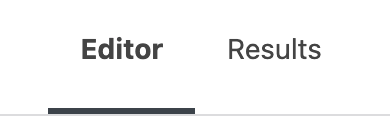
Use the Editor and Results tab to switch between the editor view and the results page for your project. If you are working with a draft project, the draft must be saved to see the results page.
Top Menu

Below the title area, you will see the following options:

Block Inserter: Add blocks of content to your page, like text, images, and much more.

Undo and Redo: Undo an action, or redo an undone action.

List View: See a list of all of the blocks that are on the page. Useful for navigating to different blocks.
Before you’ve published your page or post, you will see these options in the upper right corner of the editing screen:

Save draft: Save a draft of your page or post without publishing it.
Preview: See how your page/post looks on your site.
Publish: Make your page/post available publicly.
After you’ve published your page or post, you will see these options in the upper right corner of the editing screen::
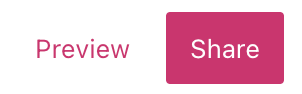
Preview: See how your page/post looks on your site.
Share: Open the sharing dialogue for your project.

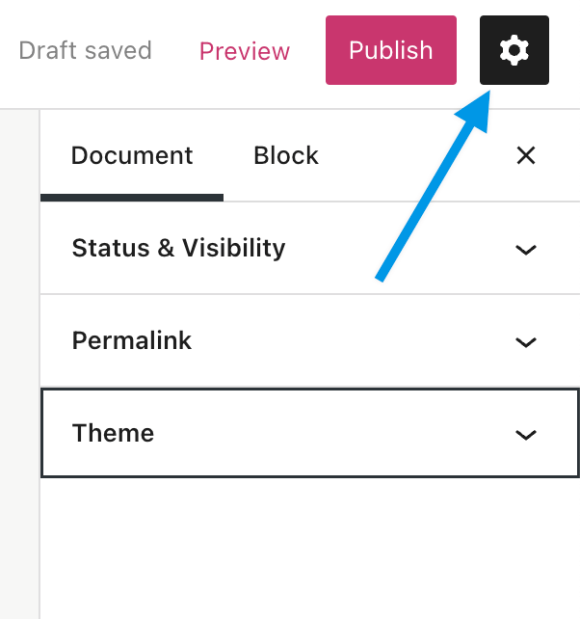
Settings: Display or hide the sidebar settings.
Sidebar Menu
The Settings sidebar menu includes the following Project settings:
When you click on a specific block in the content area, the sidebar will switch to the Block tab to show that block’s settings.
Pages Menu
The pages menu allows you to create and manage multi-page projects. The area consists of at least one page, a button to add additional pages and a mandatory confirmation page.
Click the + block to add a new, blank page
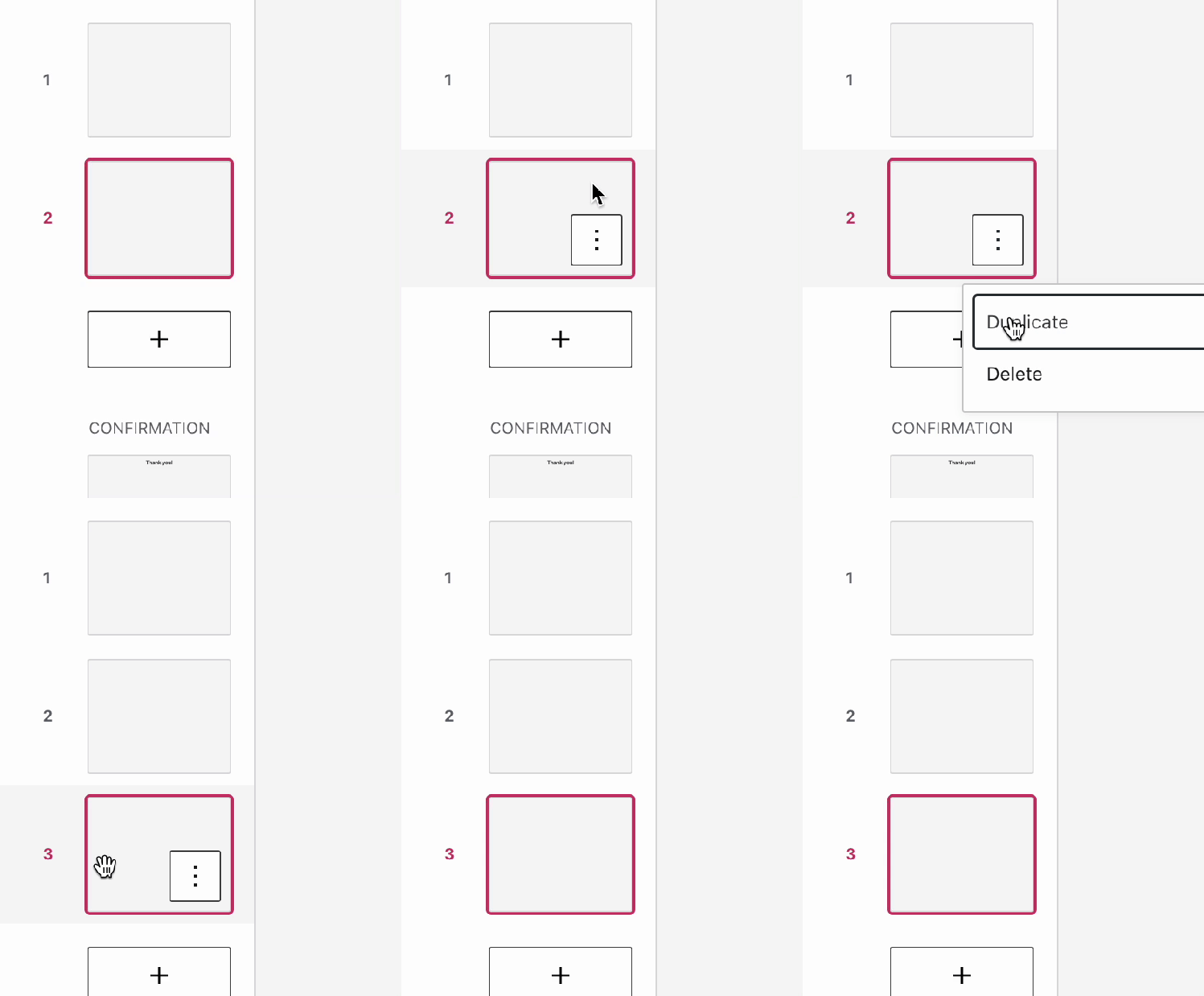
Click on a page and then click the 3 dot icon to delete or duplicate the page. You must have at least 2 pages for this feature.

Content Area
The content area is the largest part of the editor. This is where you add blocks of content to your pages and posts. Learn more in the next guide.
 Crowdsignal