To allow you to change the look of your projects, Crowdsignal offers a collection of themes.
How to select a theme
There are two ways to choose the theme for your project.
From a fresh project
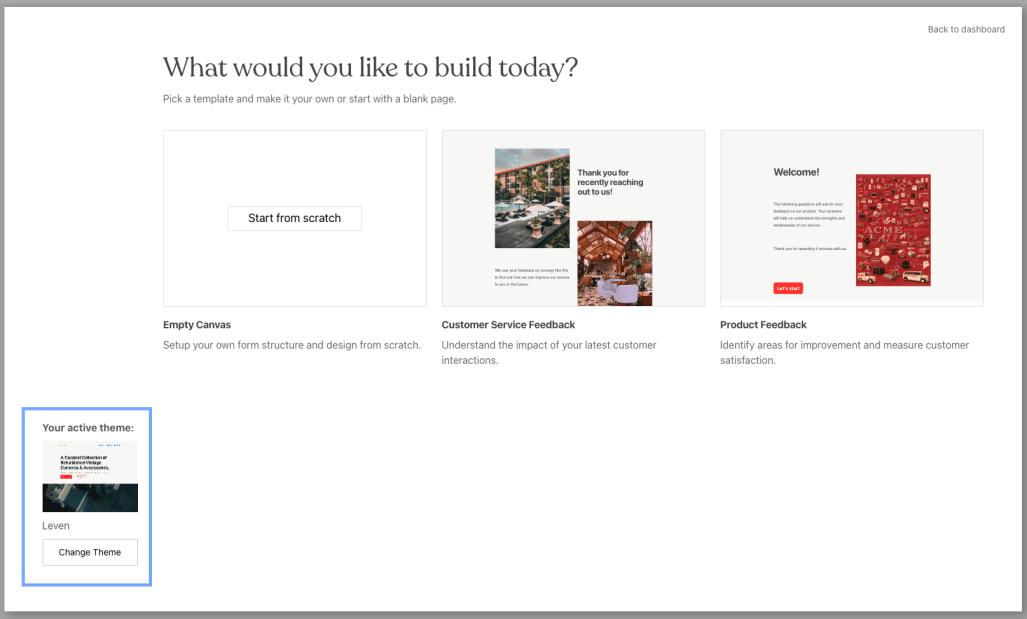
When creating a new project, on the bottom left of the template selection modal, you’ll see a preview of your selected theme and a button “Change Theme”.
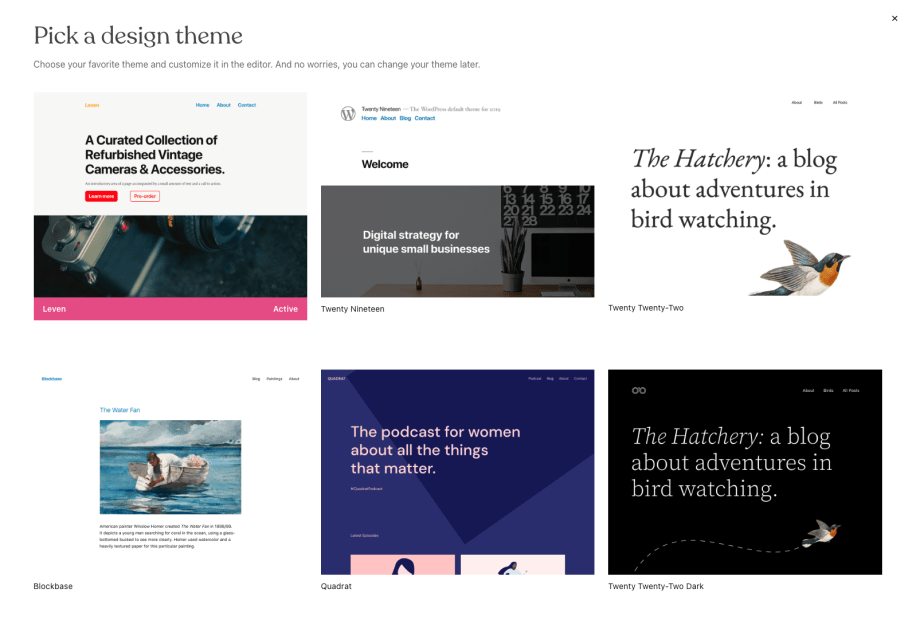
By clicking the button, the theme selection modal will pop up:
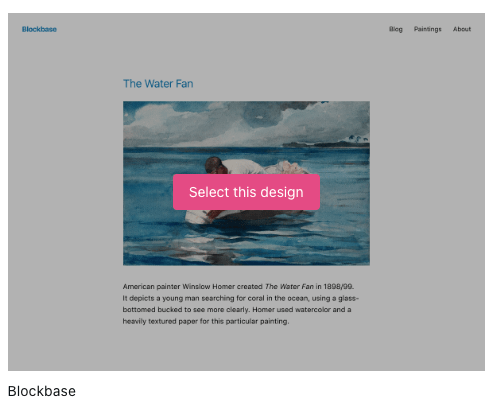
Hover your mouse over the theme preview, and you’ll see a button to select the theme.
From an existing project
If you want to change the theme from an existing project:
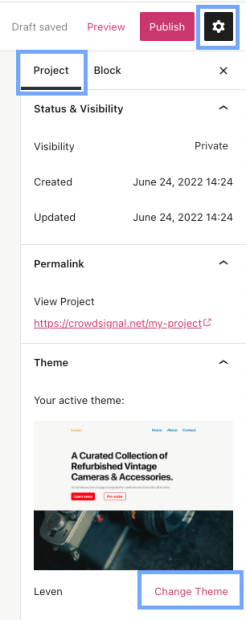
- From the Project Editor, click the gear icon on the top right corner of the screen to show the Sidebar;
- Select the “Project” tab;
- At the bottom of the Sidebar, there will be the “Theme” section, where you’ll see the active theme preview and a “Change Theme” button;
- Click the button and the theme selection modal will pop up;
- Hover your mouse over the desired theme and click the “Select this design” button to choose the theme.
Note: If your project is already published, make sure to hit the “Publish” button to update the live version of your project.
 Crowdsignal