Simplify a question by making it a Multiple Choice, saving your visitor’s time by choosing instead of typing.
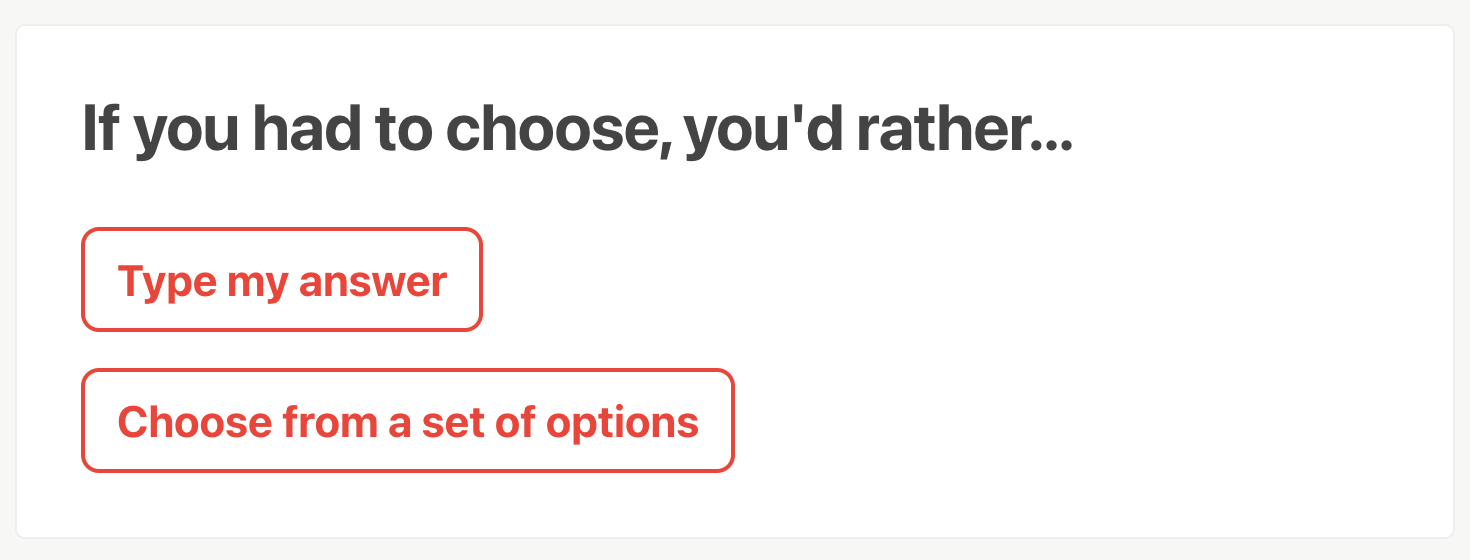
Furthermore, besides sparing keyboard time for respondents, you also ensure quantifiable responses (and save time of your own!). Even with a simple “yes or no” question, analyzing text responses can get you wondering if “yes” is the same as “yeah”, or if “sounds good” counts as a positive response or not.
With a Multiple Choice question you can restrict the answers so you get consistent data you can later use.
Adding the Multiple Choice block
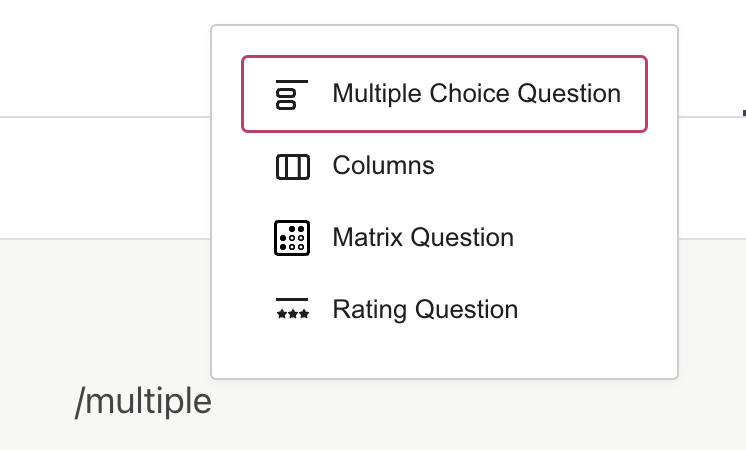
To add the Multiple Choice block, click the  button at the top-left side of the screen to open the Block Library. You can find the Multiple Choice block within the “Question” category:

You can also type /multiple on a new line in the editor to quickly add a Multiple Choice block.
Editing the Multiple Choice Question block
Once you add the Multiple Choice block, you’ll see a question placeholder and (by default) 3 options:
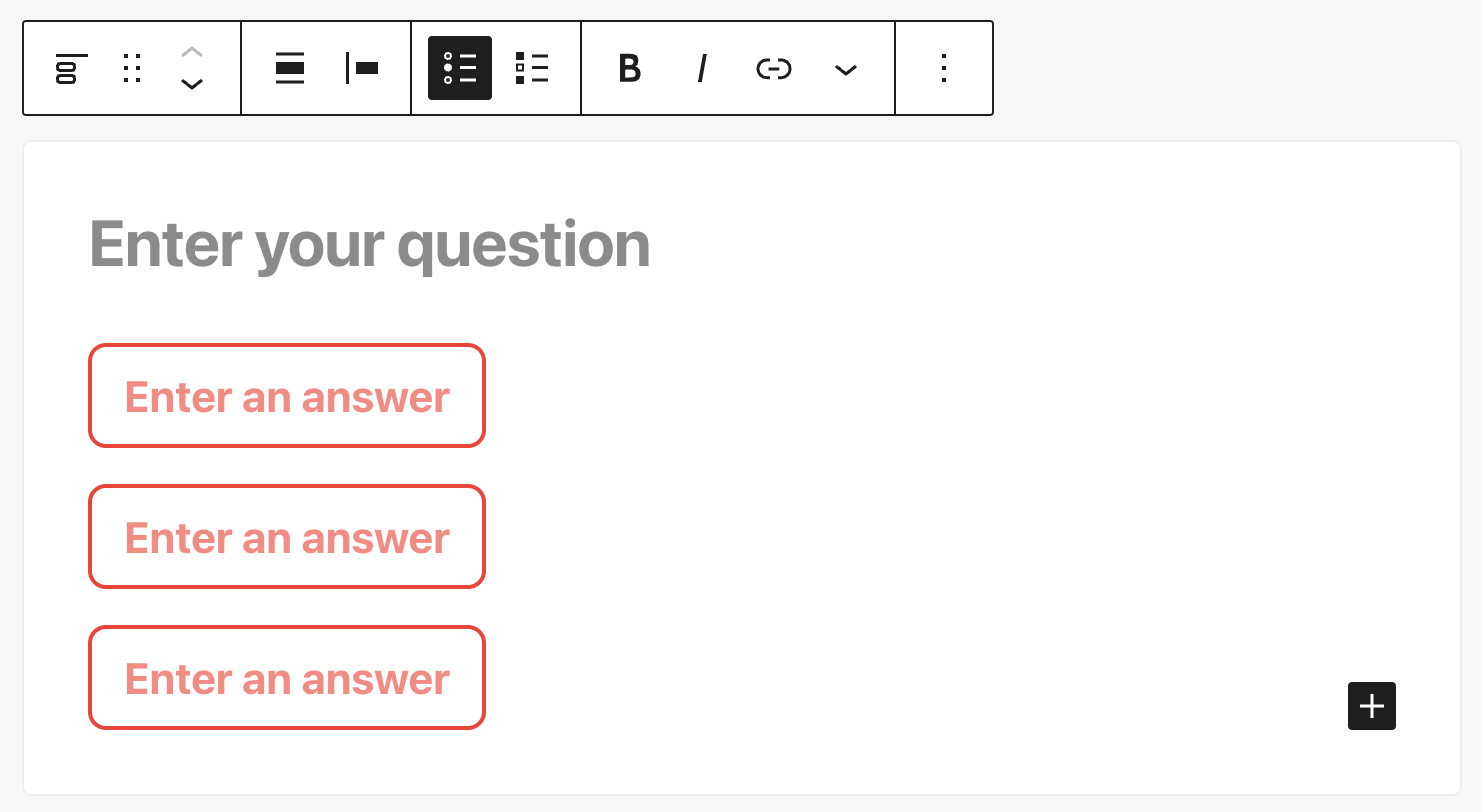
Enter your question and its possible answers. To add more options, just hit “Enter” on the last option, or use the on the lower right corner.
Once you have your question and options ready, you have a couple of options on how to display the question: Buttons or List


Also, you may allow respondents to choose more than one option. Use the Single/Multiple buttons on the toolbar to toggle the checkboxes option:
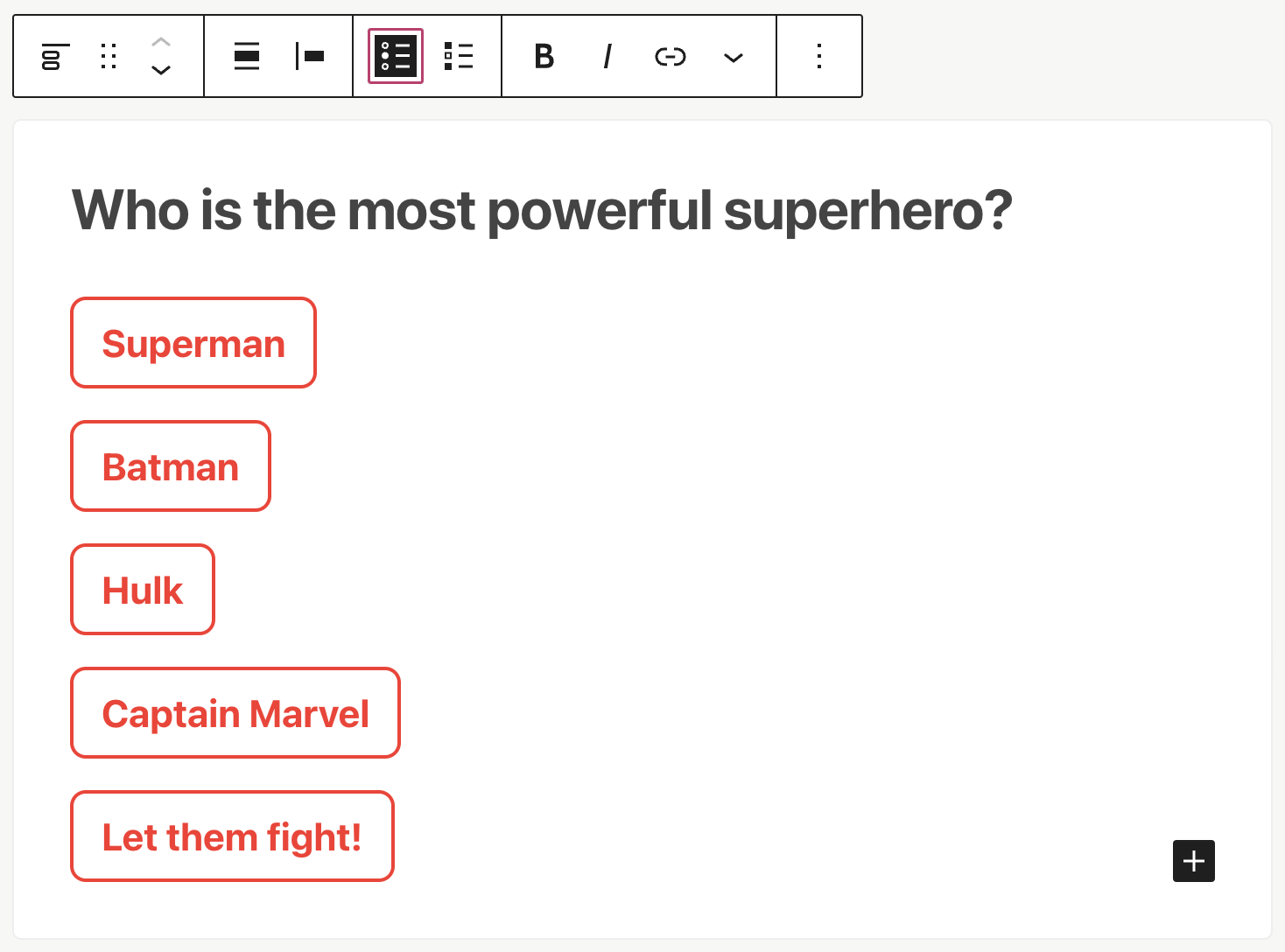

IMPORTANT: When using “Multiple selection” you can also specify a maximum number of options to be selected (defaults to the minimum, 2):

Collecting responses
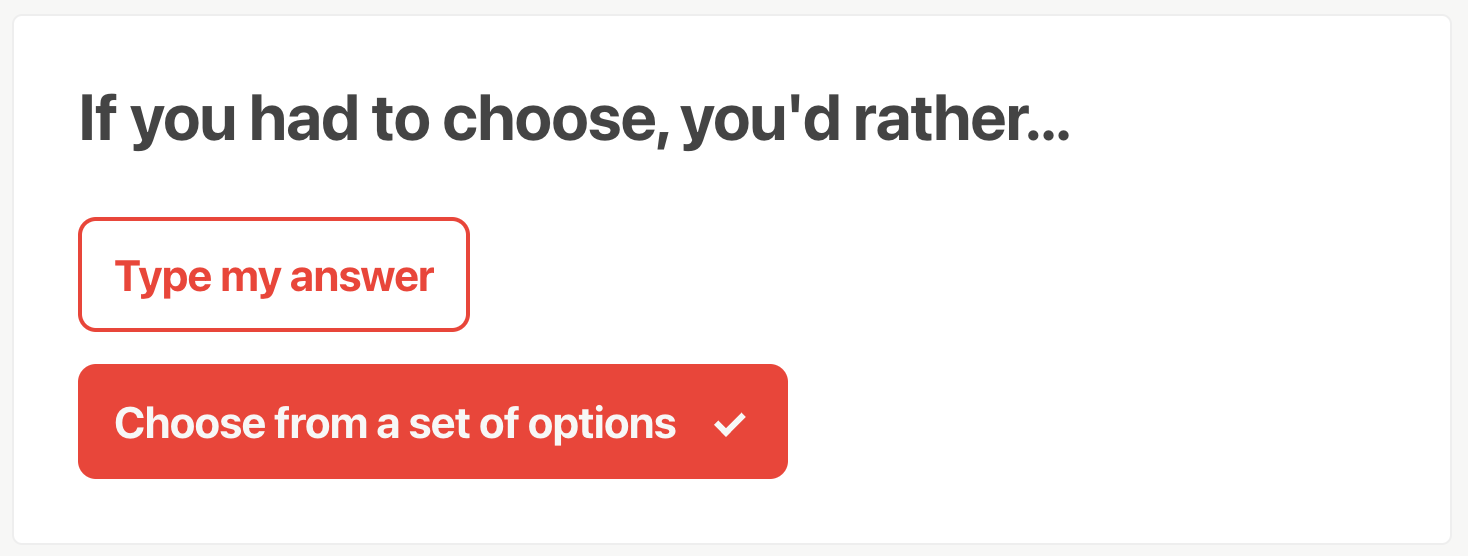
After publishing your project and sharing it with the target audience, visitors will be able to choose their answers:

The results
Results for Multiple Choice question are easy to read and understand:

 Crowdsignal