Sometimes you just need a little more information. Our text question blocks allow you to easily collect text responses from your audience.
Adding a Text Question Block
To add a text question block, click the “+” button at the top-left side of the screen to open the block library.
You’ll then find the text question block under the “Form” category.

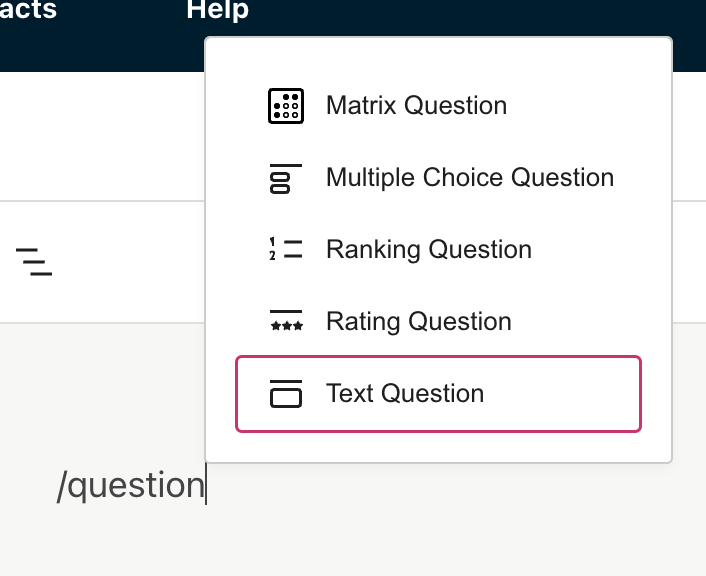
You can also type /text question into the editor, which will give you the option of inserting a text question block in that place.
Editing a Text Question Block
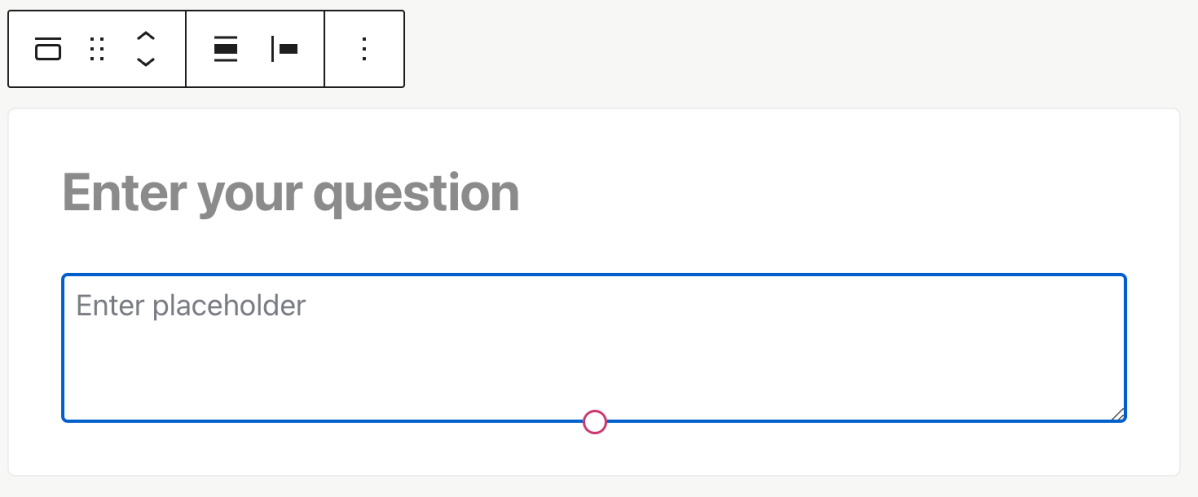
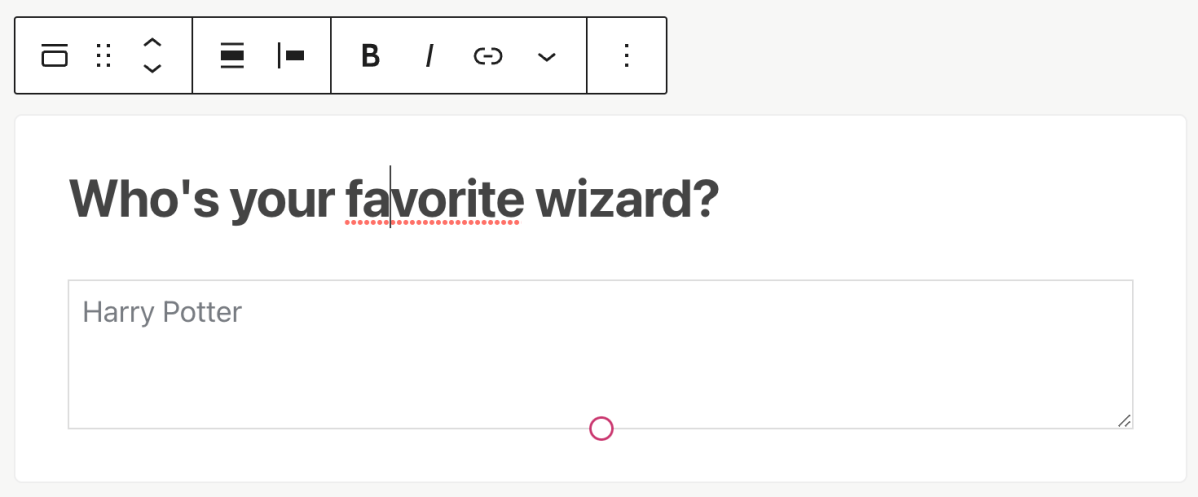
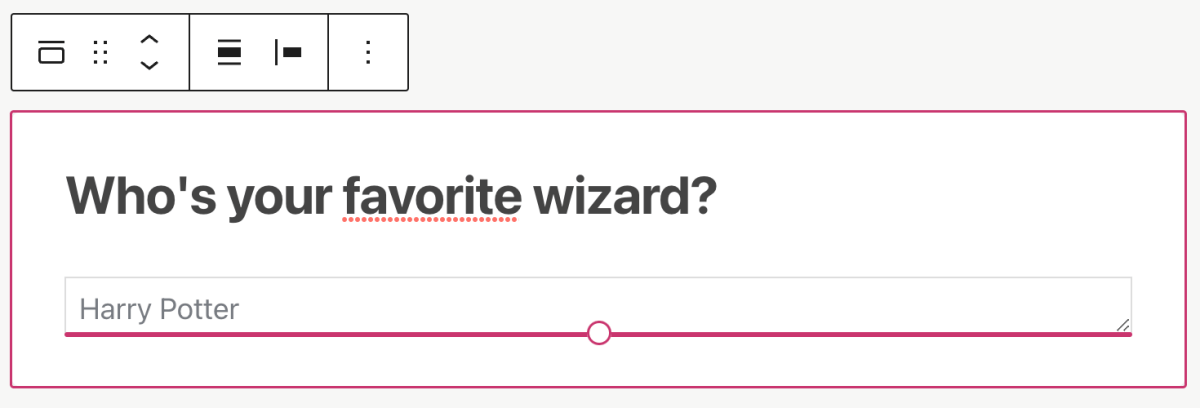
Once you’ve added a text question block, you can edit the question as well as the placeholder text inside the input itself – what your audience will see before they start typing.
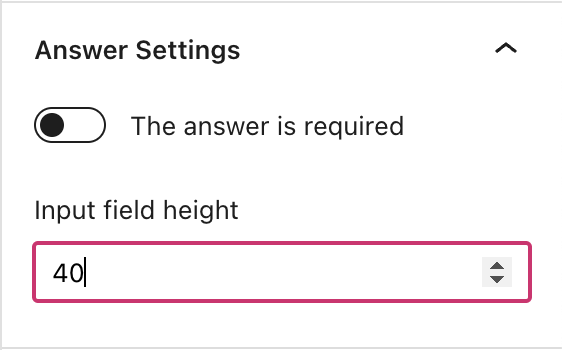
You can also resize the input height to suit your needs. You can do this by dragging the handle at the bottom of the input, or manually typing in a value in the block sidebar.
Collecting responses
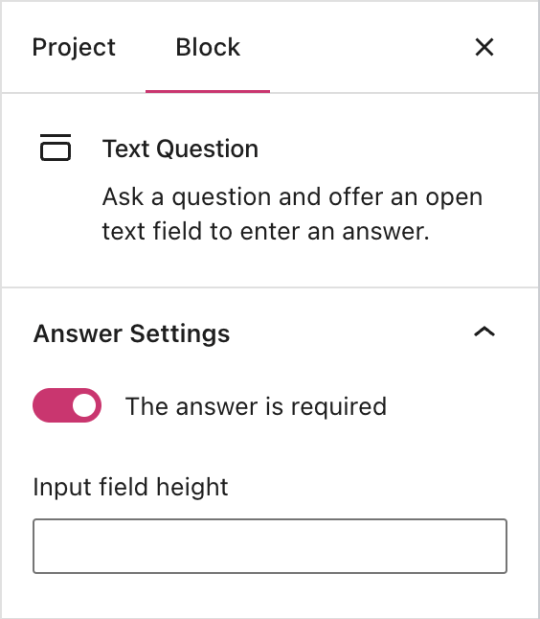
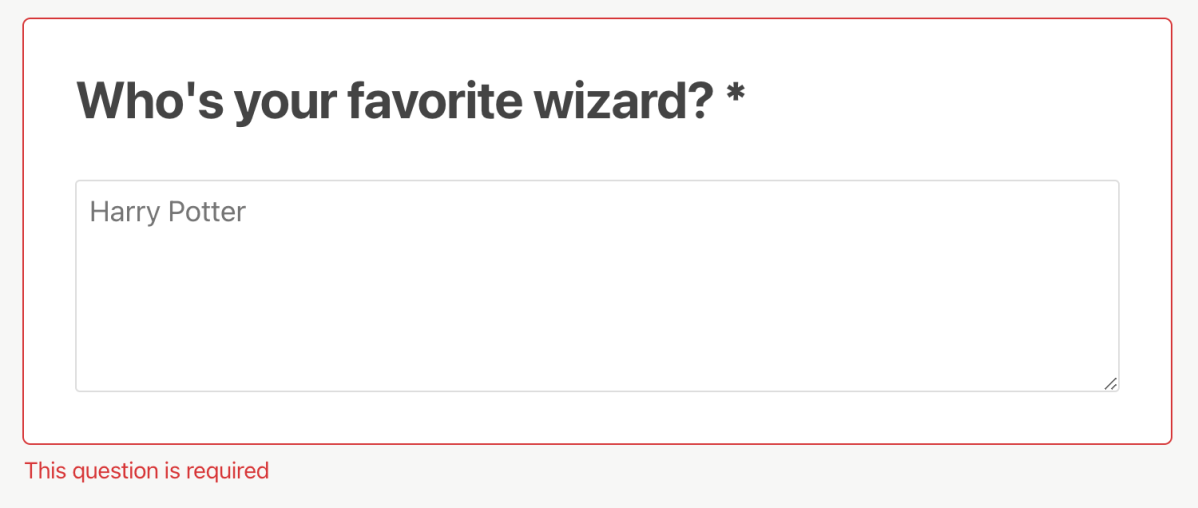
If you’d like to require your audience to fill out the text question before submitting the form, you can toggle the ‘required’ setting inside the block sidebar.
Viewing results
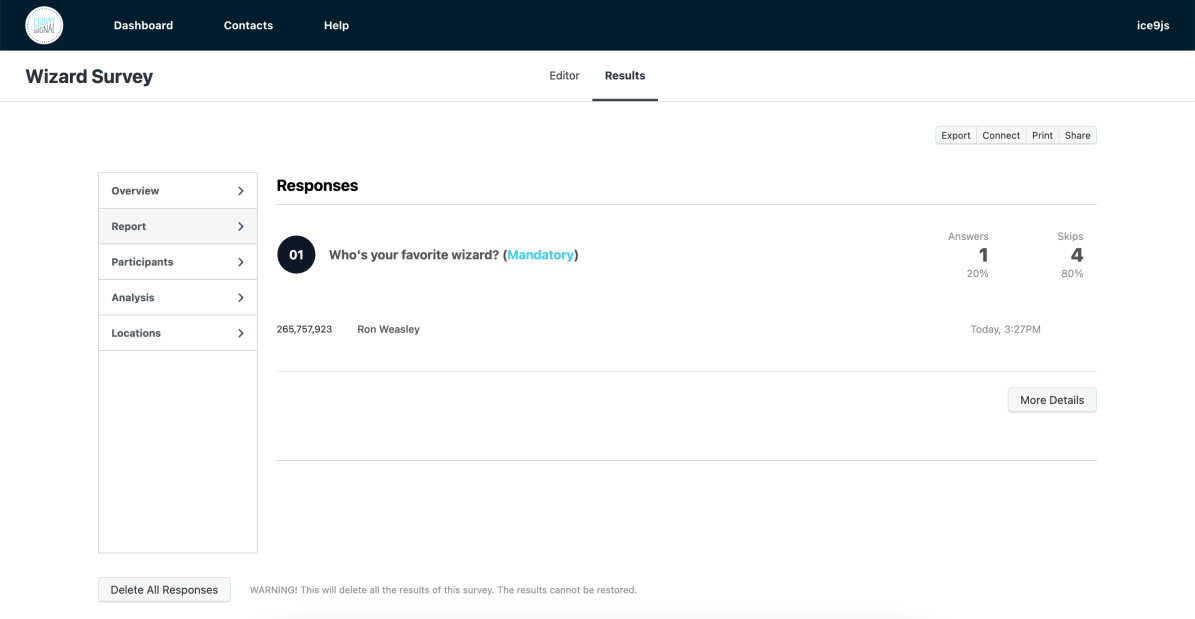
Go to “Results” -> “Report” or “Results” -> “Participant” to see the results for your new text question blocks.
 Crowdsignal