If you’re looking to further analyze your Survey’s data and make it easy to collaborate on it with others, you can sync your Survey’s results data in near real-time to Google Sheets. Note: To use this feature you must have a Premium, Business or Team plan.
Note that Google Sheets has a maximum cell/column/character limit, so if you get a message that you reached the limit, you’ll need to use an alternative export format, such as CSV.
Connect Your Google Account
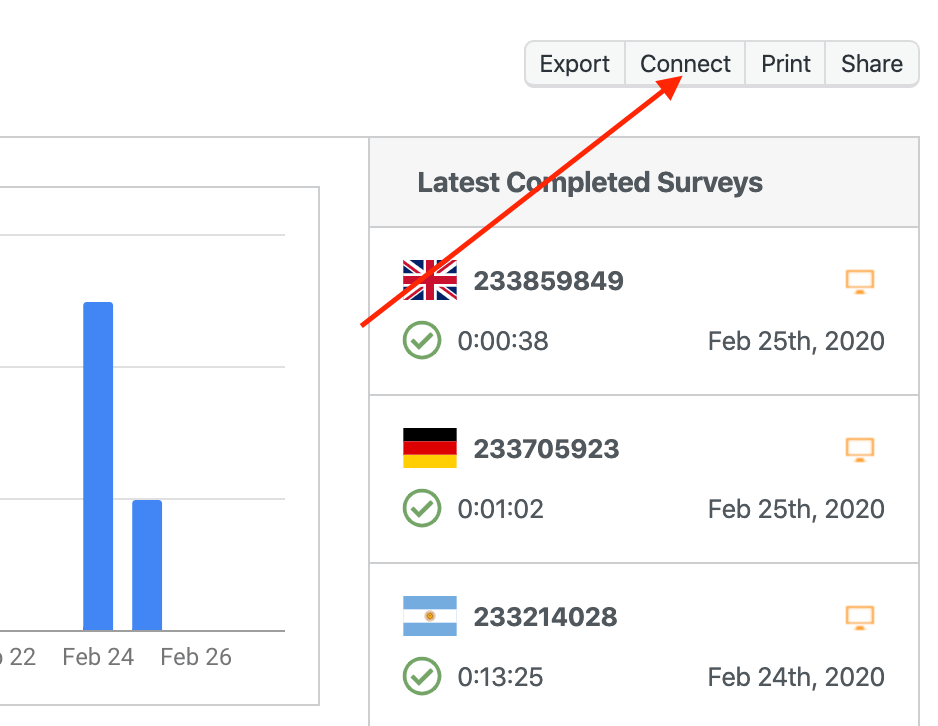
To start the connection process, visit the Results tab for a Survey, and then click on the Connect button:
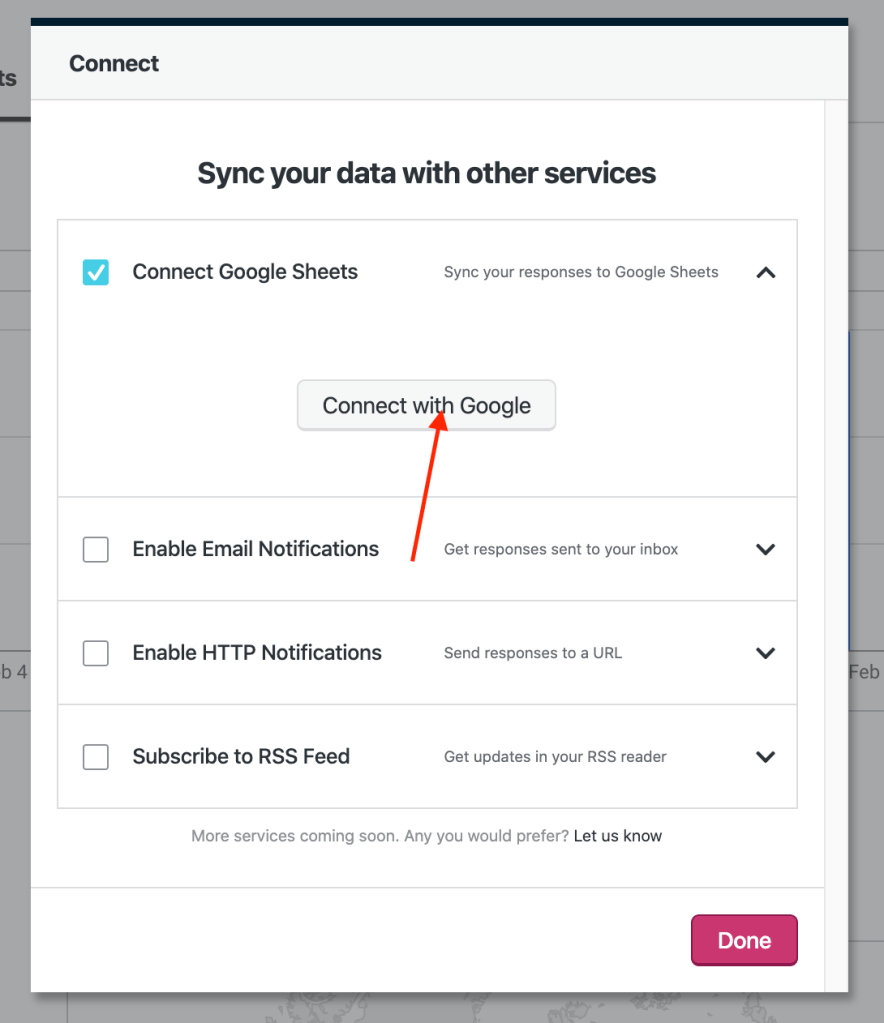
You’ll see the Connection dialog. Next, click on the Connect Google Sheets and then click on Connect with Google:
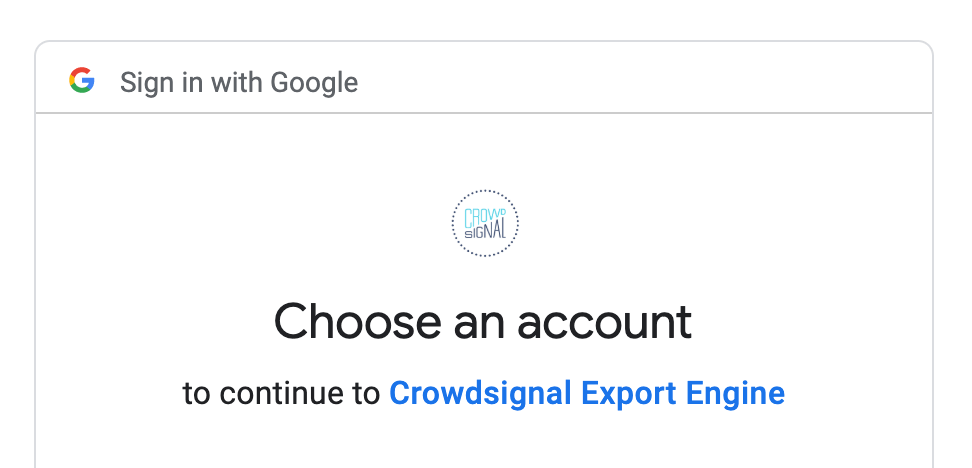
This will take you over to Google, where you authorize access for the Crowdsignal Export Engine to create and modify the sheets that we will Sync Survey data with:
After allowing access, you will be taken back to the results screen and your results will begin syncing to Google Sheets. Visit https://sheets.google.com and you should see a new Sheet in your account that matches the title of your Survey. Tip: You can find a direct link to the Google Sheets file by opening up the Connect dialog again and clicking the Google Sheets File button:
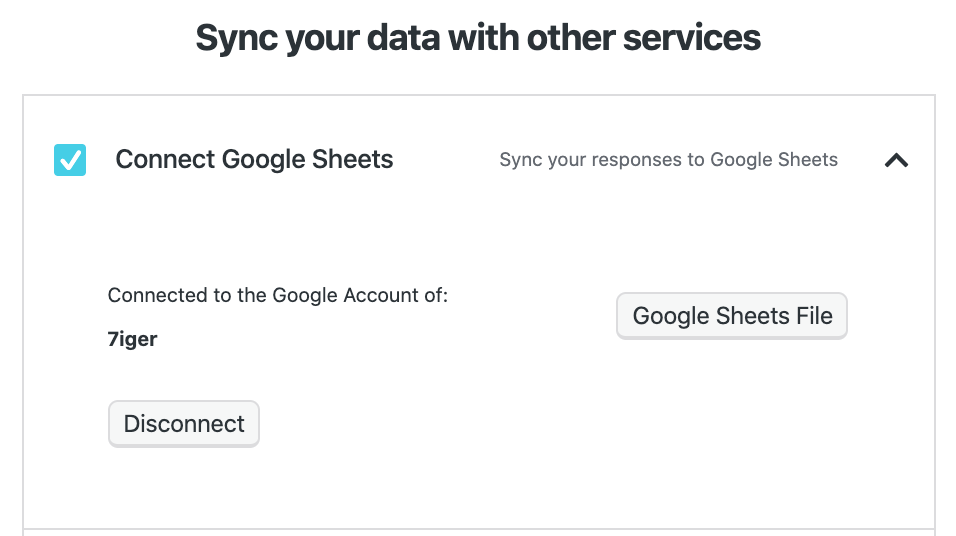
You can also click the Disconnect button to deauthorize the connection and no longer sync results data with Google Sheets.
If you’re having any trouble with Google Sheets sync, do reach out!
 Crowdsignal