Templates as a quick and convenient way to get your project started. By using templates, you can have an entire project ready with a single click, or you can use one of them as a starting point and customize it to meet your needs.
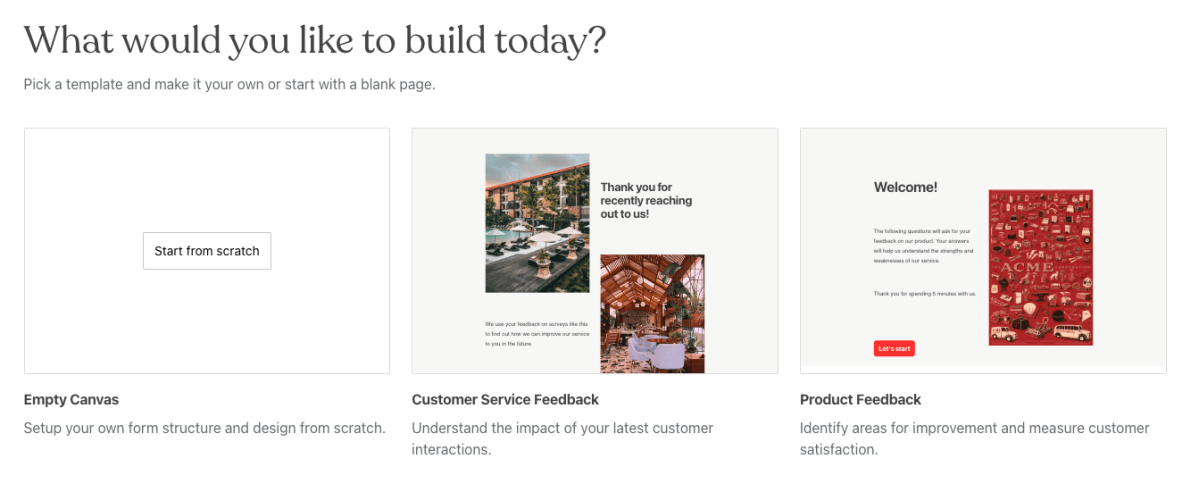
Starting a Project with a template
The Template Modal is shown only when starting a new project. After that, you won’t be able to change or select a template for your project.
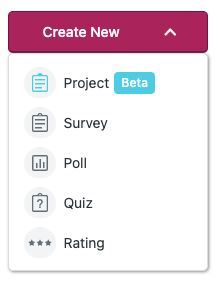
To get started, on your Crowdsignal Dashboard, click the “Create New” dropdown and select the “Project” option.
You’ll be redirected to the Project Editor, and the Template Modal will be shown over the Editor.
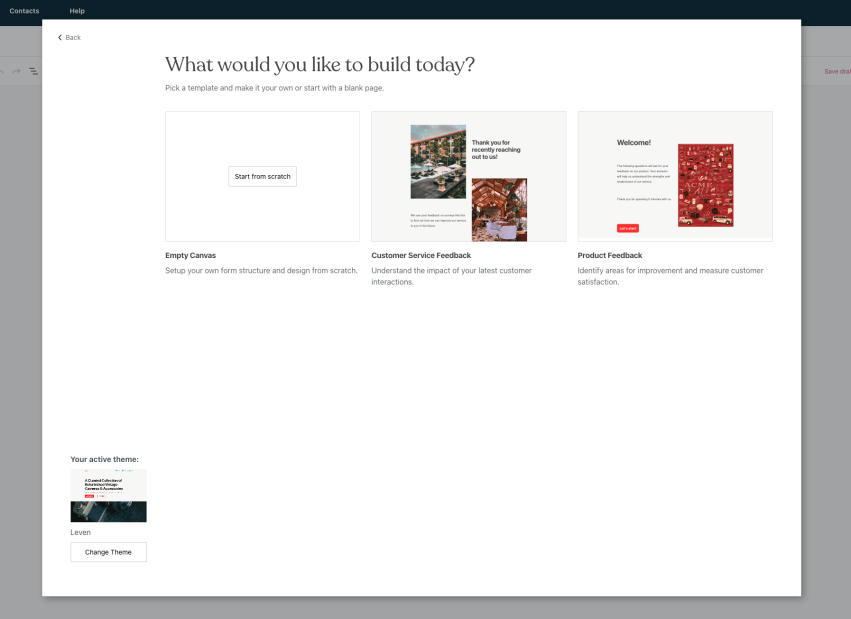
Now, you can choose to start your project from scratch or select one of the available templates.
By clicking on one of the templates, it’ll be copied to the Editor, and you can now modify it to your needs or publish it as is.
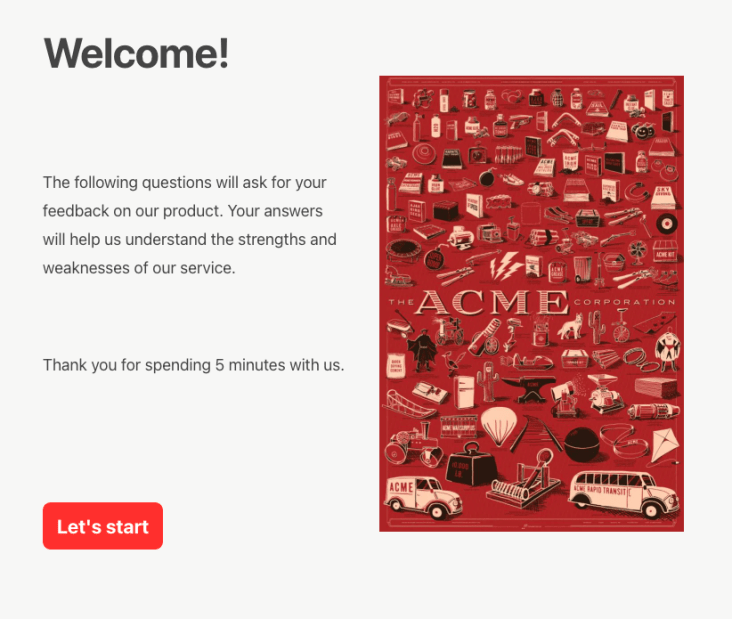
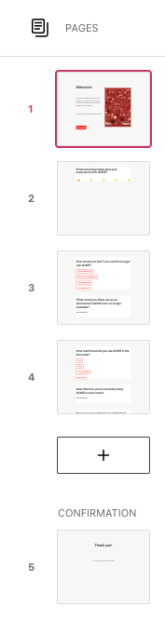
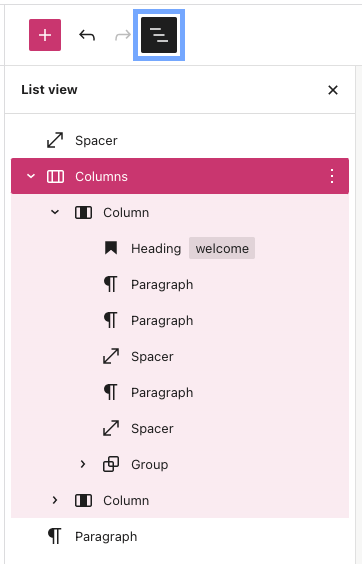
Templates are also a valuable way to get some design inspiration. You can click the “List View” icon to see how a page was designed.
You can also copy a block or group of blocks from one project to another.
Click the three vertical dots and choose the “Copy block” option.
Now, on an empty line on the Editor, you can use the paste command to add the copied blocks to your project.

 Crowdsignal