The participant report shows a list of those who responded to your survey.
Accessing Participant Report for your Survey
To access your participant report, hover over the title of your survey in your dashboard. Click on Results:

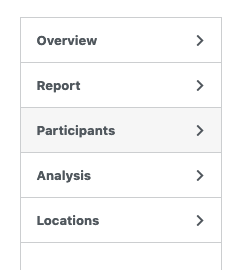
Then click on Participants:
You will be shown a table of respondents:

Navigating Survey Responses
Click on the View Response link to see how the individual answered each survey question:

You’ll be able to see how the individual answered each question in your survey:

Click on the star next to View Response to highlight the response for later analysis. Note that if a participant chose not to answer a particular question, the message “The respondent skipped this question” will show beneath the question.
When you click on View Response, in addition to the individual answers, you’ll see a Participant Information box on the right-hand side of the page. You’ll see the participant’s location, Response ID, IP address, the time the participant started the survey, and the time that the participant finished the survey.
Click on the Print button to print the individual response. Click on the Delete this Participant button to remove the participant’s responses from your survey results.

Managing Incomplete Responses to a Survey
What is an incomplete response?
We consider a response incomplete when:
- A participant submits data that doesn’t validate, such as an invalid email address.
- A participant skips a mandatory field and then doesn’t complete the survey.
- A participant abandons a multi-page survey before they’ve completed it.
You might choose to include these incomplete responses if they contain useful partial data or delete them entirely if you like.
Viewing Incomplete Responses
To view incomplete responses, hover over the title of your survey in your dashboard and click on View Results. Then, click on the Participants tab, to see a list of your survey’s responses.
On the right-hand side of the individual responses, Crowdsignal reports the number of complete and incomplete responses.

From the dropdown, you can choose to view All Responses, Complete responses only, Incomplete responses only, or Locked responses only.
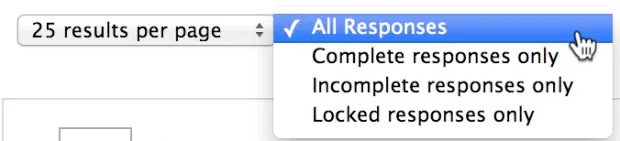
Once the filter for incomplete responses has been applied, you can pick out the incomplete response’s distinct styling:

On viewing that response, we can see that the respondent skipped the question:

On the right-hand side of the screen, you can check out some information about the response and the participant. You can choose to either delete the response or add the incomplete response to your reports:

 Crowdsignal