In this document, we’ll cover how to move polls, surveys, quizzes, and ratings among folders and how to work with folders. You can mix content in folders, so you can organize your polls, surveys, quizzes, and ratings, into projects or campaigns—or however you see fit!
Adding folders
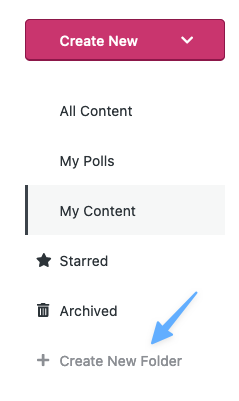
To add a folder, click on the Plus button:
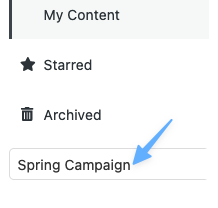
Name your folder, and then press Enter or Return:
Renaming or deleting folders
Click on the folder bar to Rename your folder or if the folder is empty, Delete it. You must either delete any items in the folder or move them to another folder first before the Delete button appears.

Moving folders
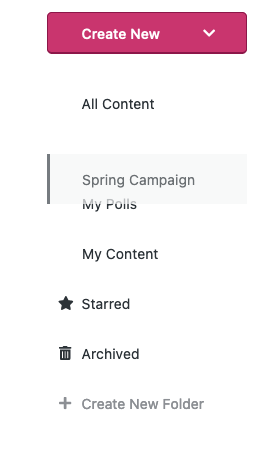
To move a folder, click on the folder and drag your folder to its new location:
Nest folders with ease
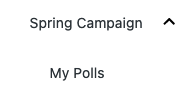
You can even nest folders by clicking and dragging a folder over the destination folder. Note that nested folders are hidden from view until you click on the parent folder.
Check out the nifty nested folder:
Bulk move any content
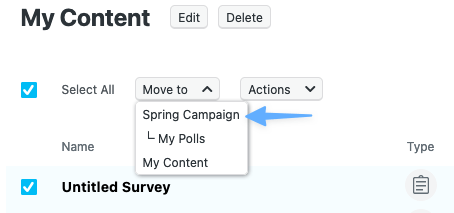
You can move content into folder with the Move to drop down. Select your content category from the left, and the piece of content you wish to move from the main dashboard area. (Select multiple pieces of content to do a bulk move).
Then, click on the Move to drop down and select the destination folder.
 Crowdsignal