
The Matrix question block is similar to the multiple choice question block, but it is presented as a table of related questions and answers. It is typically used to collect data that has identical answers (i.e., rate your preference – poor, good, excellent).
Adding the Block
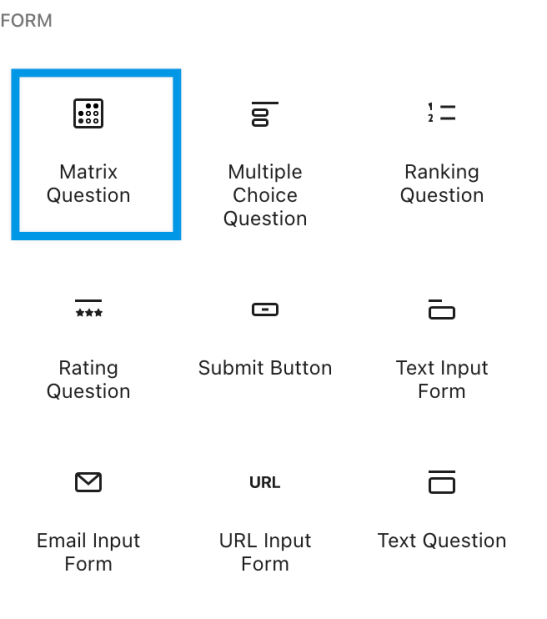
Select Matrix Question from the Crowdsignal Blocks section of the block Picker. You can also search for “Matrix” in the new block search or type /matrix on a new line in the editor.
When the block is added there will be a wizard to setup the initial layout of the block to include the number of columns and rows you would like. You can add and remove columns and rows at any time.
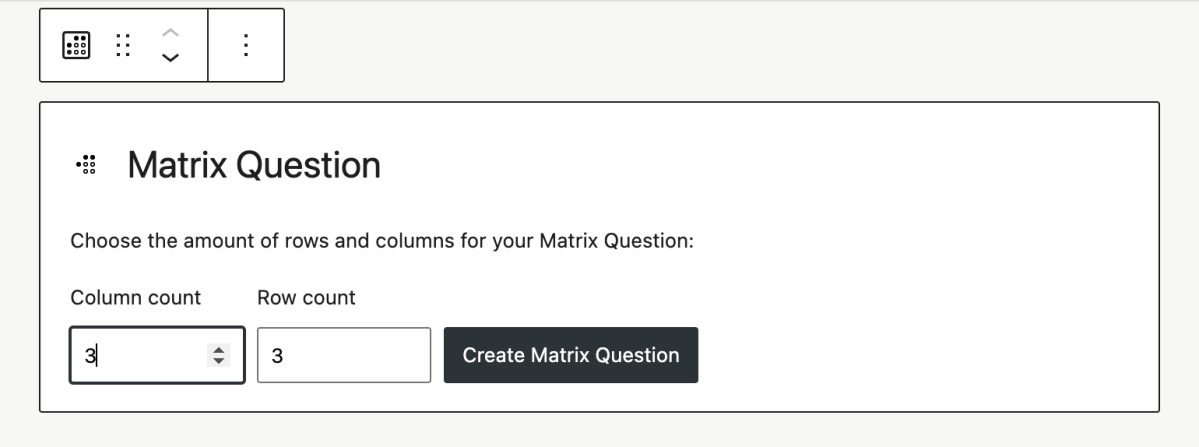
Click the Create Matrix Question button and a new blank Matrix will appear in the editor.
Add question text and then replace the placeholder text in the matrix with your answers and column names.

Adding or Removing Rows and Columns
Click the (pane) icon in the toolbar for a list of options to manipulate rows or columns and select the desired option.


You can also use your keyboard to add and delete elements. To add a new row, click to the right of the row label and press enter on your keyboard. A new, blank row will be created below the current row. To add a column, place your cursor to the right of a column heading and press enter. A new column will appear to the right of the original.
You may also delete columns and rows in the same manner. Click the desired label or row header and then press Delete on your keyboard. The selected row or column will be removed.
Please note that there is currently no option to reorder rows or columns.
Options
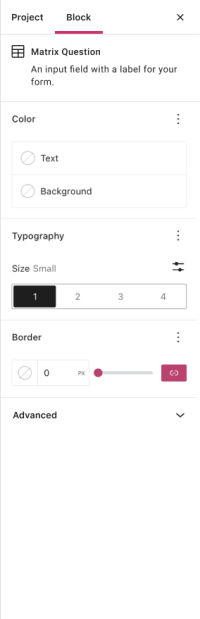
Question is mandatory – Checking this will make the question mandatory. Your participants must answer the question to complete the survey.
Choices – See below for detail on Matrix choices.
Matrix type
Your matrix can be one of these types:
- Single choice per question – respondent can pick one column choice per row.
- Multiple choices per question – respondent can pick multiple columns per row
To switch between the options, use the tool bar above the block and select either the radio button or checkbox icon.
The single choice per question will look like this in the survey question editor.

This is how the single choice per question will look to your respondents:

The multiple choices per question type will look like this in the survey question editor:
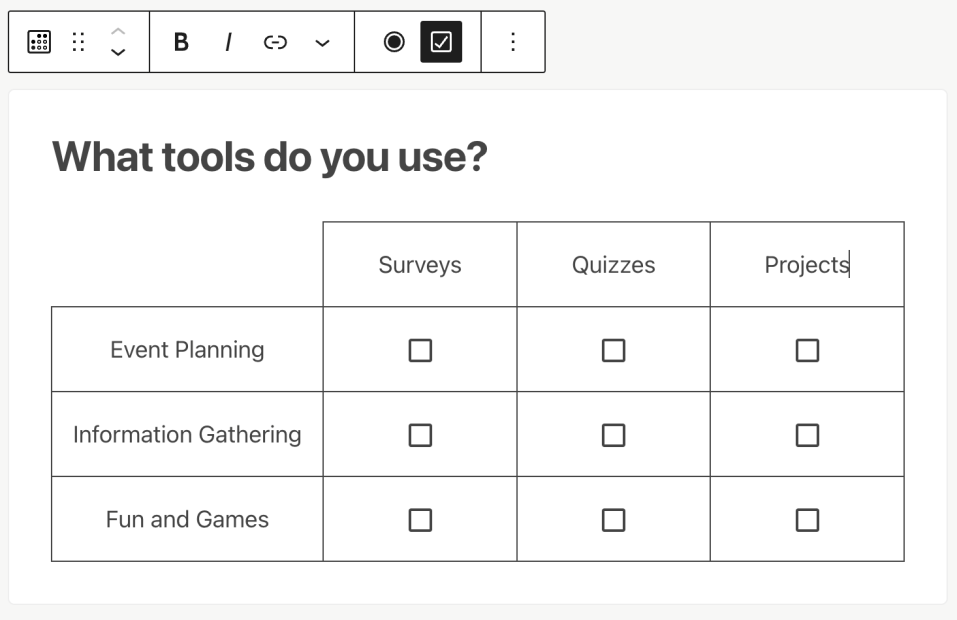
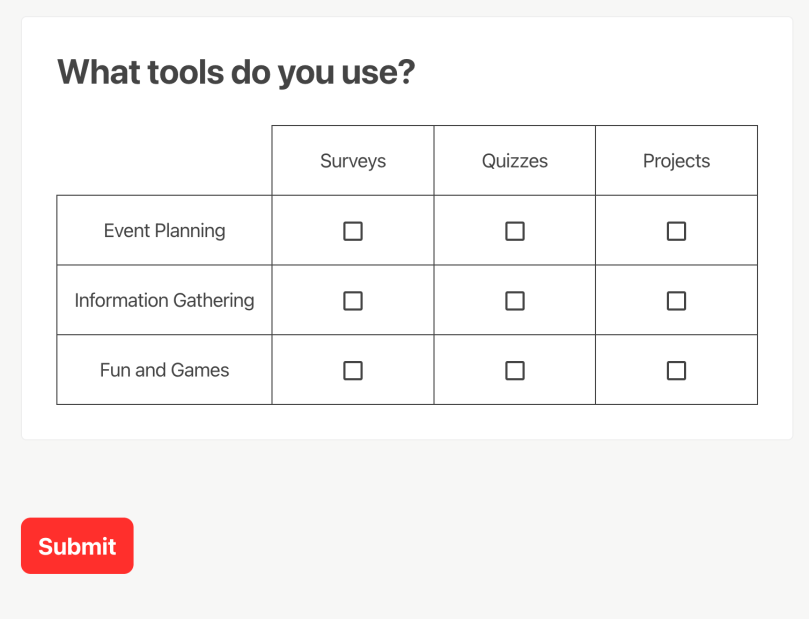
This is how the multiple choices per question type will look to your respondents:
Checking Results
The results of a project with a matrix question can be viewed the same way as any other project. Results are available either directly via the editor by clicking the results tab or from the Crowdsignal dashboard
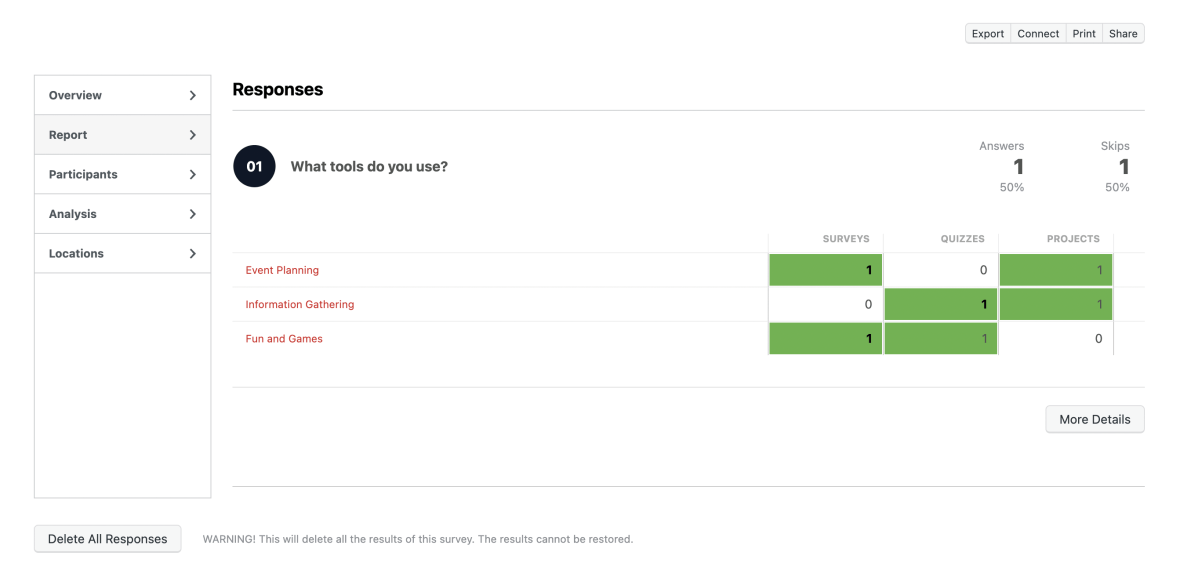
The results of a Matrix Question will also be displayed in a matrix showing the original column and row text along with the number of votes each option received.
You can view responses to all questions in a project by clicking on the Report tab in the results page.
Still have questions? Contact us.
 Crowdsignal