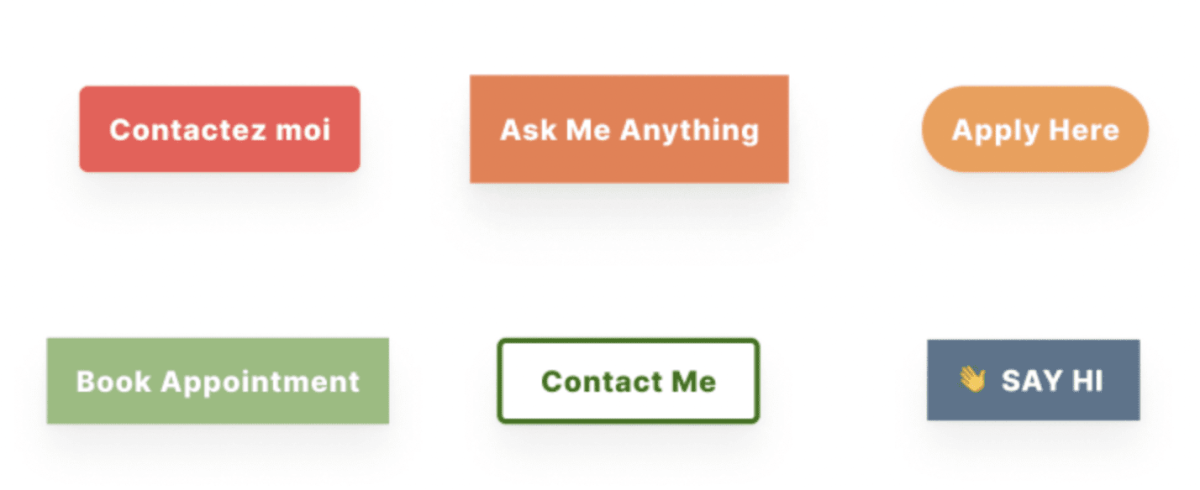
The feedback button block will add an always-visible button for your audience to share feedback or contact you anytime. Here is an example of how it looks on a website:

The feedback button can be easily customized depending on your needs. You can ask your site visitors anything you’d like to learn in any way that works for you.
Feedback button: How to add
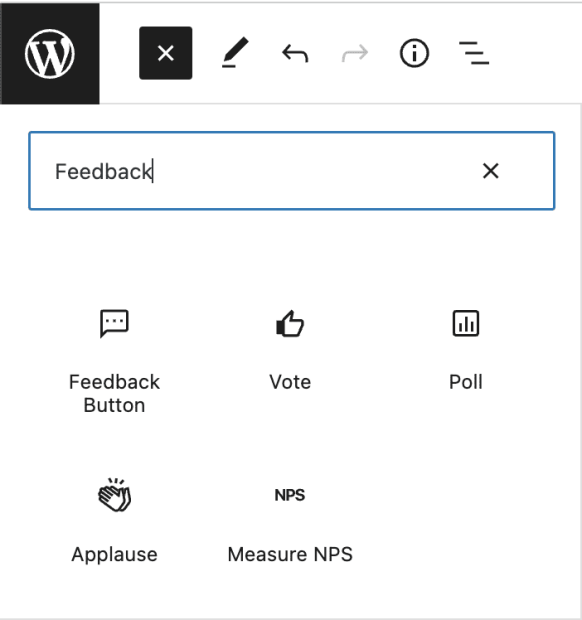
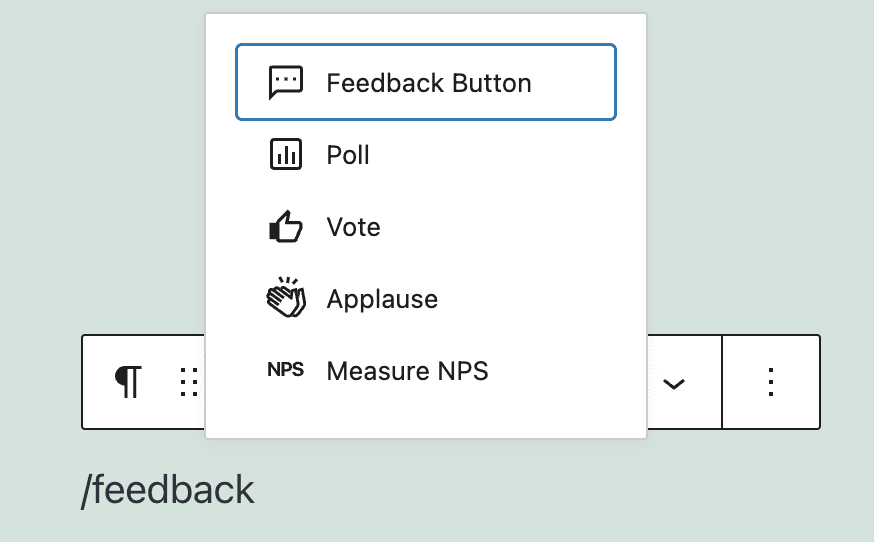
To add the Feedback button block, click on the block inserter + icon and search for ‘Feedback Button’. You can also type /feedback and select the block when it appears.
Feedback button: Options
The block toolbar shows the options that the feedback button offers:

- Question
- Lets you customize the initial sentence.
- Submit
- Lets you customize the finish message.
- Position
- Change where on your page the button appears.
Feedback button: Settings
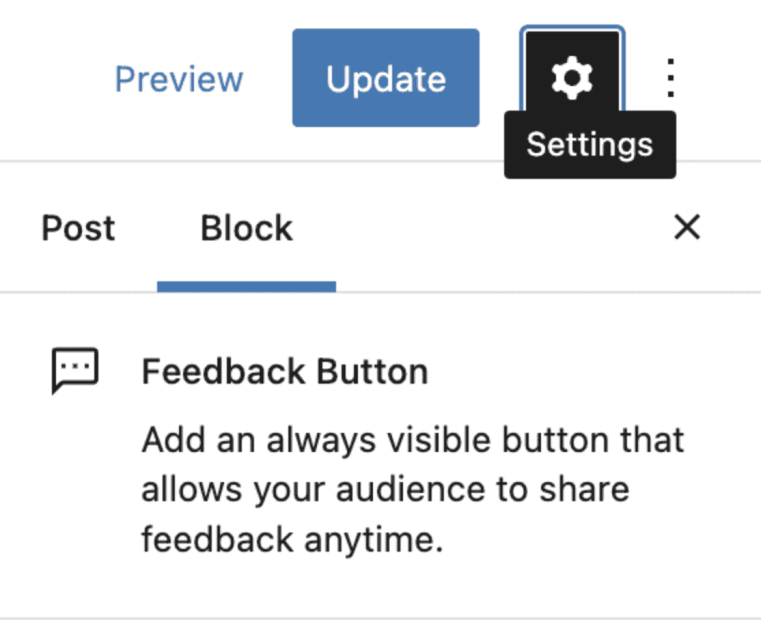
In order to see the Feedback button block settings, click the cog icon next to the Publish/Update button in the upper right corner.
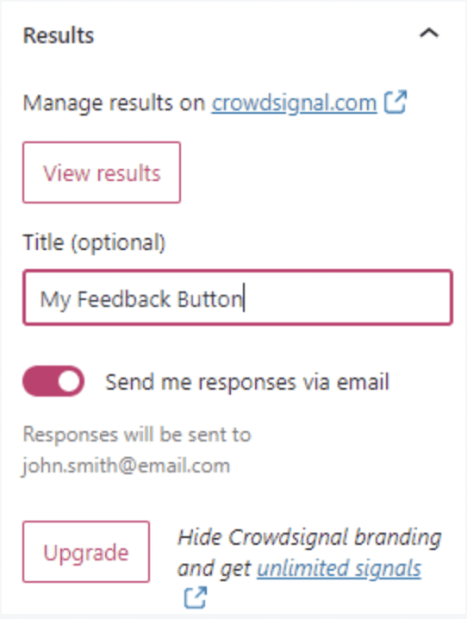
- Results
- View results: to view the submitted feedback, make sure to connect the same WordPress.com account you used to insert the feedback button to Crowdsignal. By clicking the ‘View results’ button, you will be taken directly to the results.
- Title: this is visible only to you.
- Send me responses via email: email notifications are enabled by default.
- Upgrade: Upgrading your Crowdsignal account means you can also have unlimited submissions. A free Crowdsignal account allows 2,500 responses.
- Feedback button
- You can choose the background and text colors for the feedback button.
- Block styling
- Customize the background, text, button background and button text of the feedback form.
- Settings
- Select the status of your form. Three options: Open, Closed after (allowing you to pick a date in the future when your feedback form will close), Closed.
- Decide how you want to show the feedback form. Three options: when the visitor clicks the button, when the visitor hovers their mouse over the button, shows the form instantly when the visitor opens your page.
- Toggle on the Require Email Address option so that a visitor cannot submit their feedback without also submitting a valid email address.
- Advanced
- The advanced tab lets you add a CSS class to your block, allowing you to write custom CSS and style the block.
 Crowdsignal