You can allow list email addresses in your surveys/quizzes so that only people who enter a allow listed email address and click the confirmation link in the email they receive will have their response counted.
Please note that enabling Email restrictions along with Cookie and IP restrictions is the strongest setup against multiple voting (e.g., cheating).
That said, to set up the email address allow listing , go to Settings > General and enable the Email Restriction checkbox under Restrictions, and you’ll see Select Users:

Click on Select Users, and you will see the email address allow list dialog:
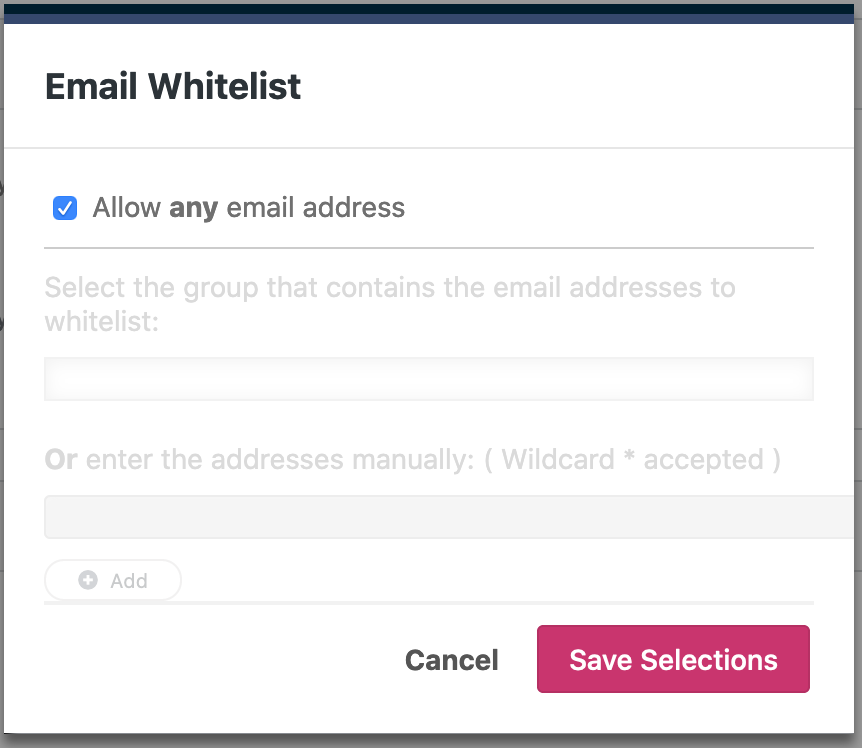
If you allow any email address, a participant must enter a valid one to access the survey or quiz. The response is registered when the participant clicks on a confirmation link.
If you choose an email group, only email addresses from this group will be permitted access to your survey or quiz. Also, responses from the email addresses in an email group will only be registered when the participant clicks on a confirmation link.
If you enter individual email addresses, you can use wildcards to allow a set of email addresses. For example, if you entered *@crowdsignal.com, all valid email addresses ending with @crowdsignal.com will be permitted access to the survey, like jack@crowdsignal.com.
Once you choose what email addresses you want to allow list, click the Save Selections button.
Finally, click the Save button on the survey/quiz editor page to save all your survey/quiz settings.
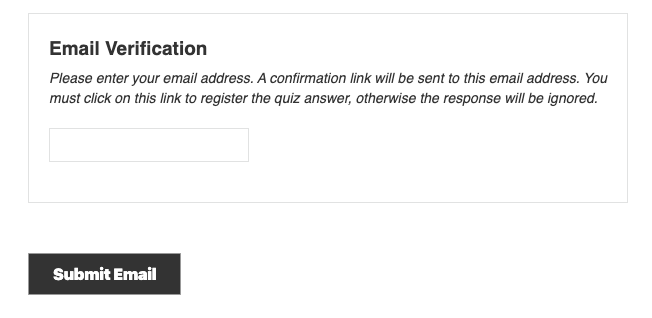
Now when a participant opens this survey, they will be asked to enter an email address:
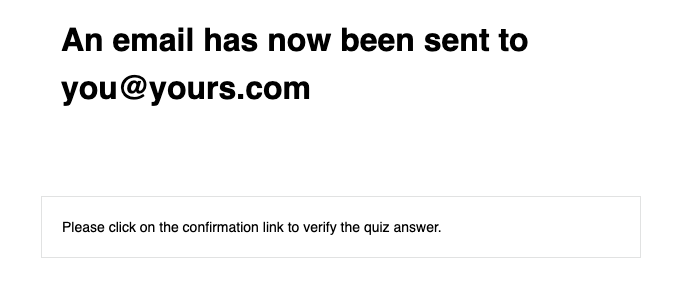
When the participant completes the survey/quiz, they will see a message like the following.
The user will then be sent an email with a confirmation link.
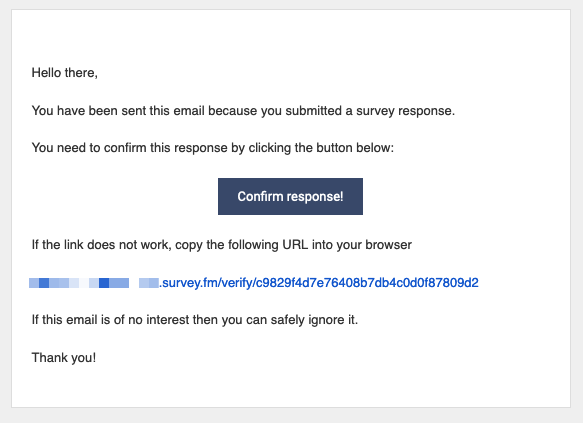
When the participant clicks on this link, they confirm ownership of the email address and the survey response is registered. A browser window is opened with a “Thank you for completing this survey.” message.
 Crowdsignal