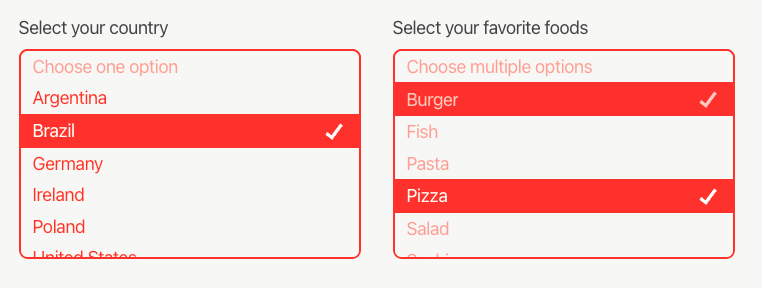
The Dropdown block is one of the available Form blocks. It allows the creation of a list of options that can be selected from a suspended list.
The Dropdown block supports single or multiple options selection.

Adding the Dropdown block
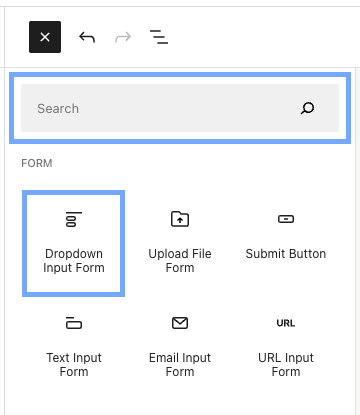
To add the Dropdown block, click the  button at the top-left side of the screen to open the Block Library. You can now use the search box to find the block using its name or select it from the list of available blocks.
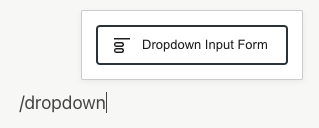
You can also type /dropdown on a new line in the editor to quickly add a Dropdown block.
Editing the Dropdown block
Once you add the Dropdown block, you’ll see a few placeholders where you can define a label and the ‘unselected option’ text, and also include the dropdown options.
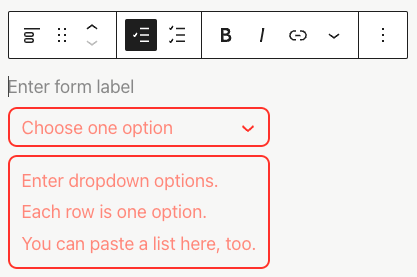
To include the options, you can either write down an option and press the <Enter> key to create a new entry or just paste a list of options.
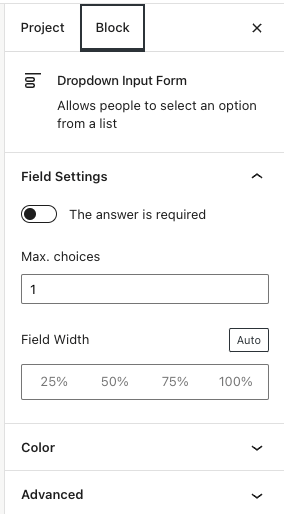
The Toolbar allows you to switch between single or multiple-choice, along with the text formatting options. And the Sidebar allows you to add some more customization to the block.

Collecting responses
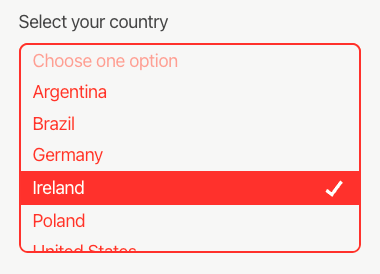
After publishing your project and sharing it with the target audience, visitors will be able to click the dropdown button to select the desired answer.
The results
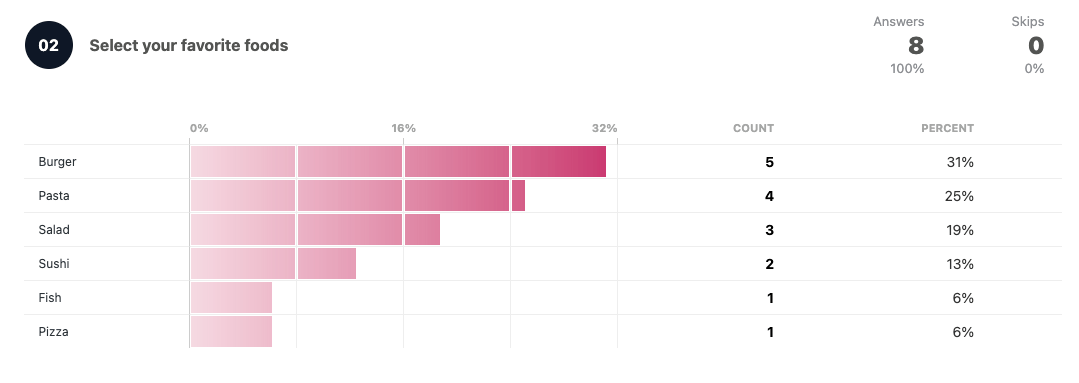
The results page will show the list of answers ordered by the most selected option.
 Crowdsignal