A block is a single piece of content in the Crowdsignal Editor. Think of them as the literal building blocks of your project. You can add blocks for questions, ratings form fields, text, images, video, audio and much more! This guide will teach you how to get started with adding blocks.
How to Add a Block
You can add a block anywhere you see the + button (called the Block Inserter). This will appear in several places:
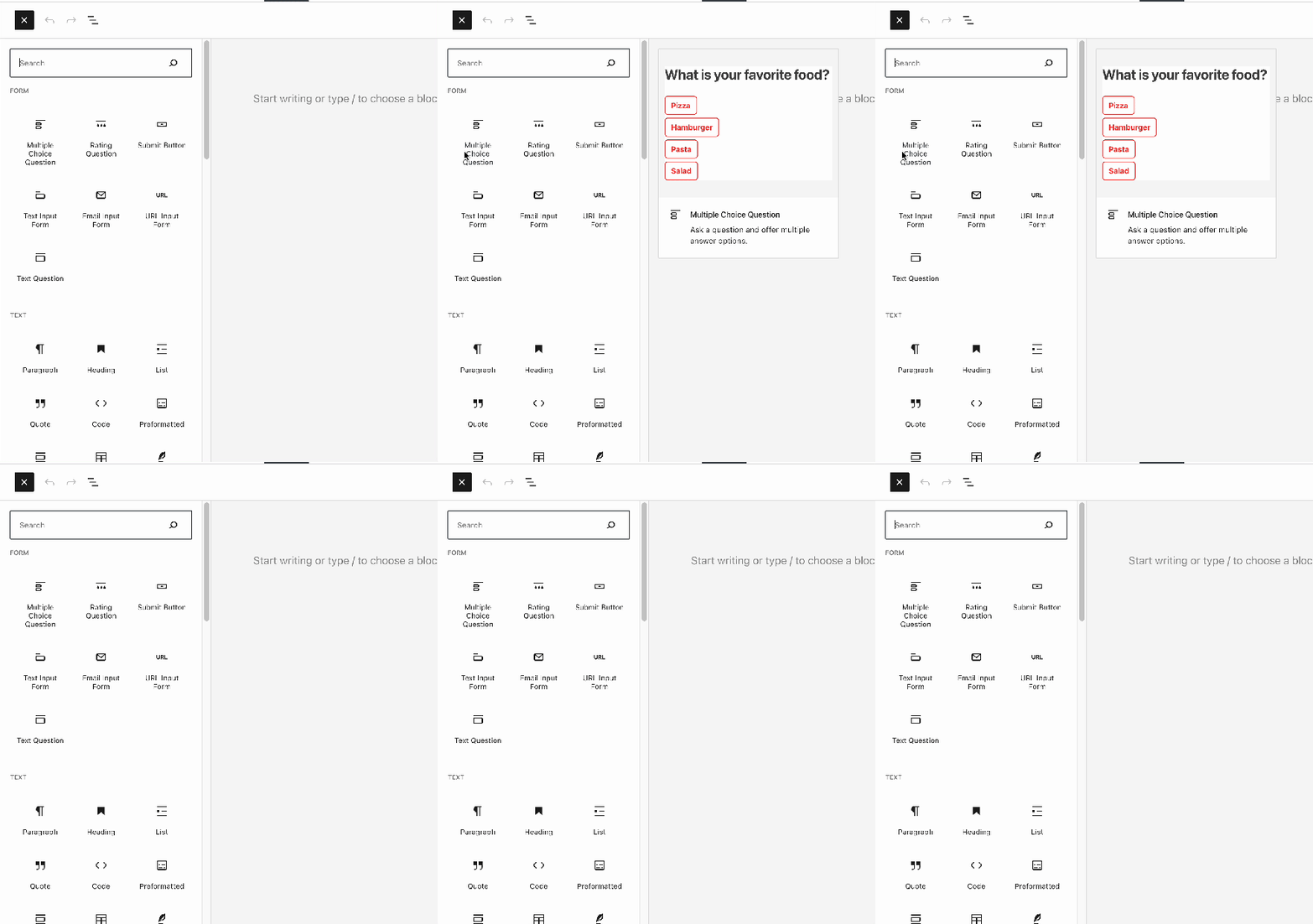
- Click the + Block Inserter at the top left corner of the editor. This option is great for previewing different block styles:
- Click the + Block Inserter at the side of an empty block:
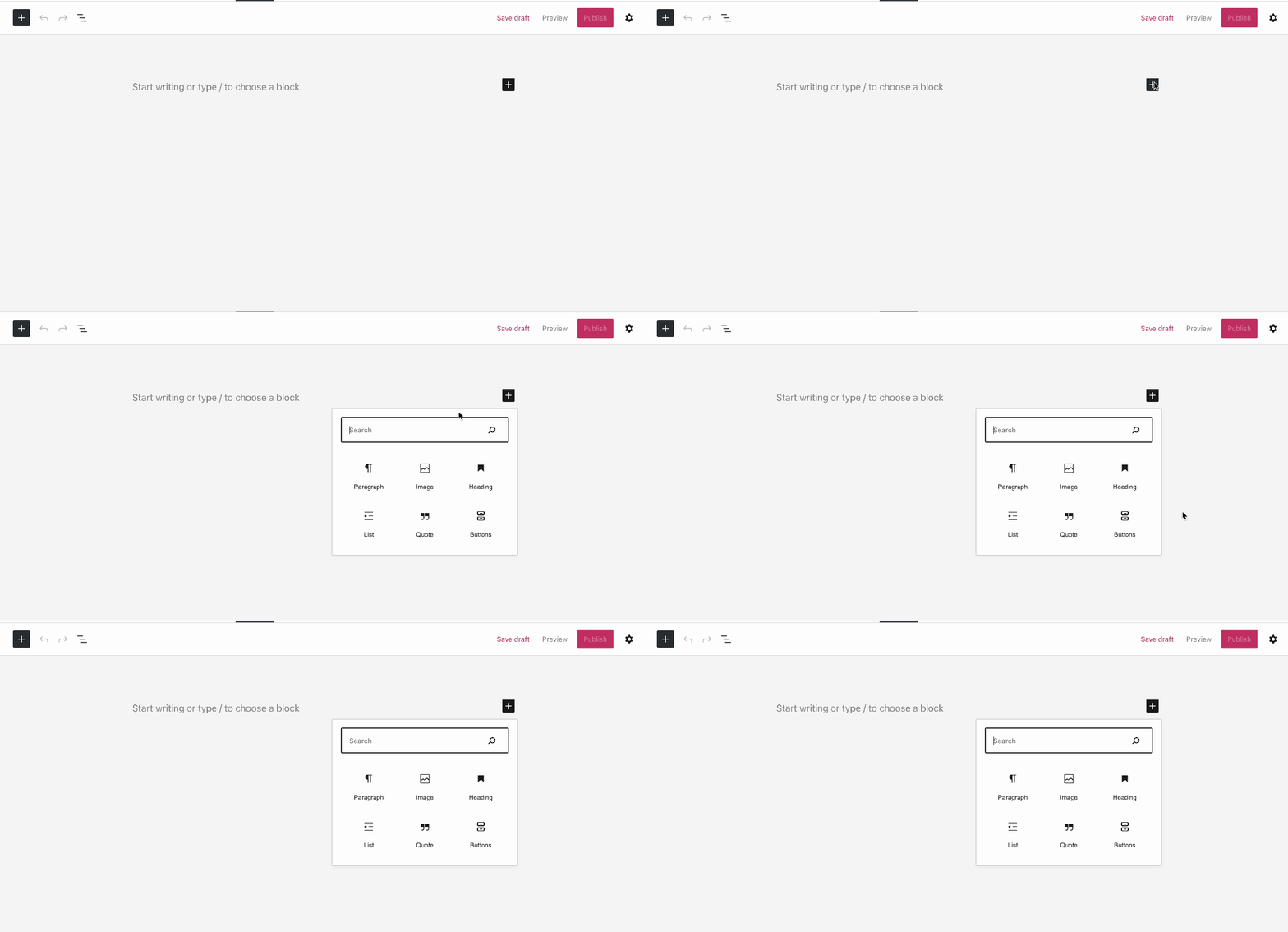
- Press the Enter/Return key on your keyboard to create a new line below it, and click the + Block Inserter:

- In the toolbar that appears above a block you have clicked on, select the … (three dots) and choose Insert before or Insert after to insert a new block above or below the current block:

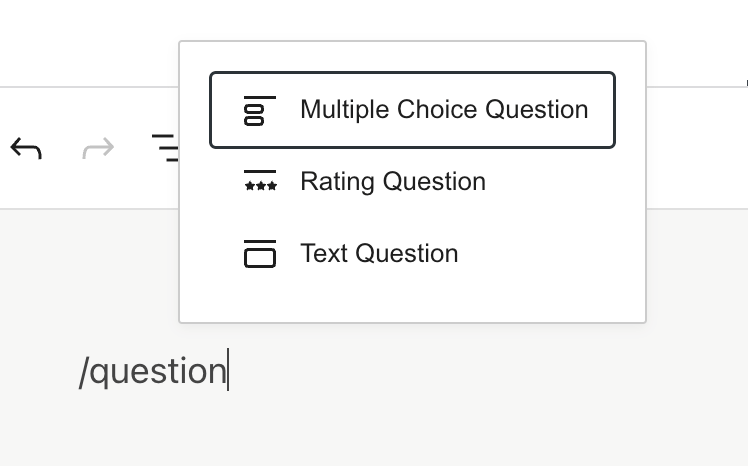
Pro Tip: Once you are familiar with the names of different blocks, you can quickly add a block by typing a forward slash followed by the block name. For example: /image or /heading.
Exploring Blocks
There’s a block for every possible element you might want to add to your site. To browse the full list of blocks, click the + Block Inserter in the upper left corner of the editor.
Here, you will see all the blocks divided into categories. When you hover over a block, it will show you a preview with more information.
 Crowdsignal