The Survey Block gives you an easy way to display a survey on a WordPress site. If you have a WordPress.com site, this block is already available. If you are using WordPress with a different host, you can install the CrowdSignal Forms plugin.
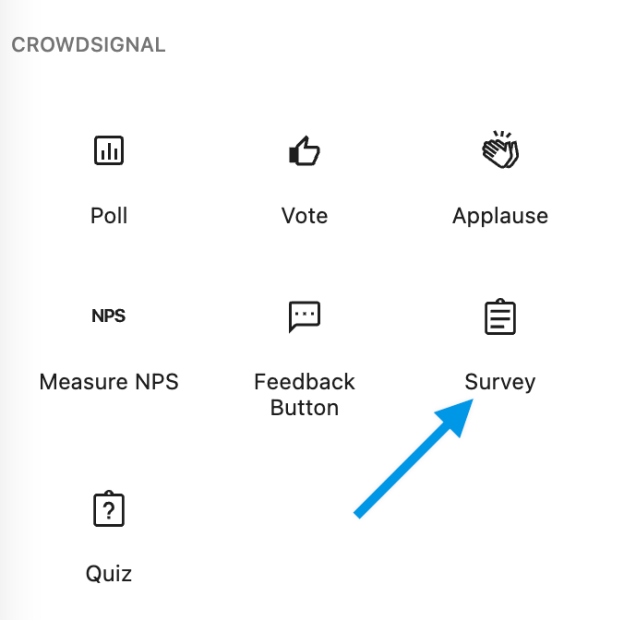
The Survey Block can be added via the Block Library or by adding a new block to your page and search for “Survey”
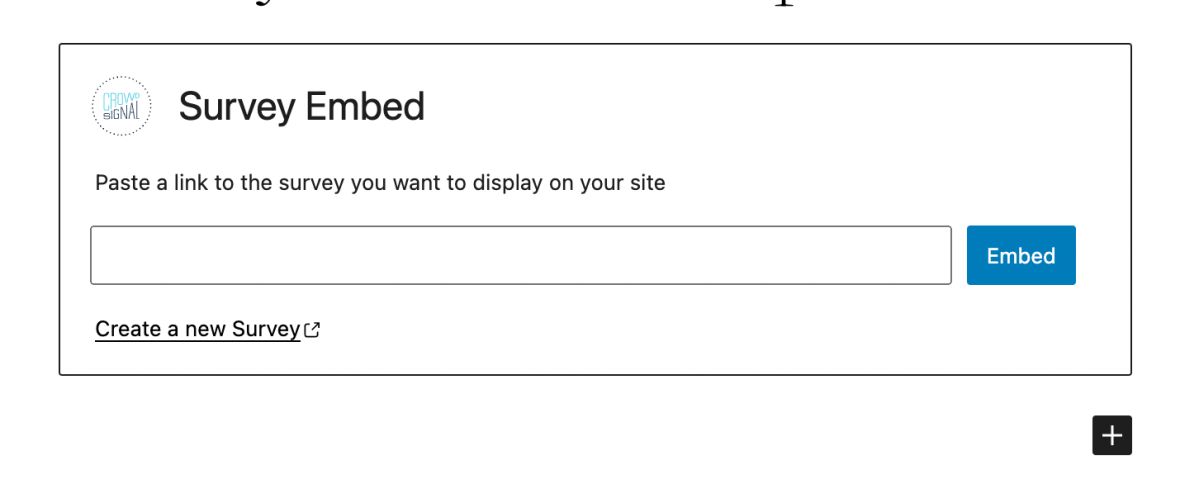
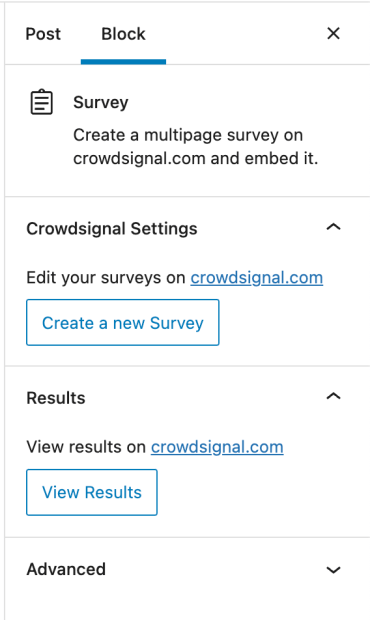
Once the block has been added you will see an embed form. Add the sharing link from an existing survey. Or, click on the create button in the block’s controls in the right sidebar of the editor.
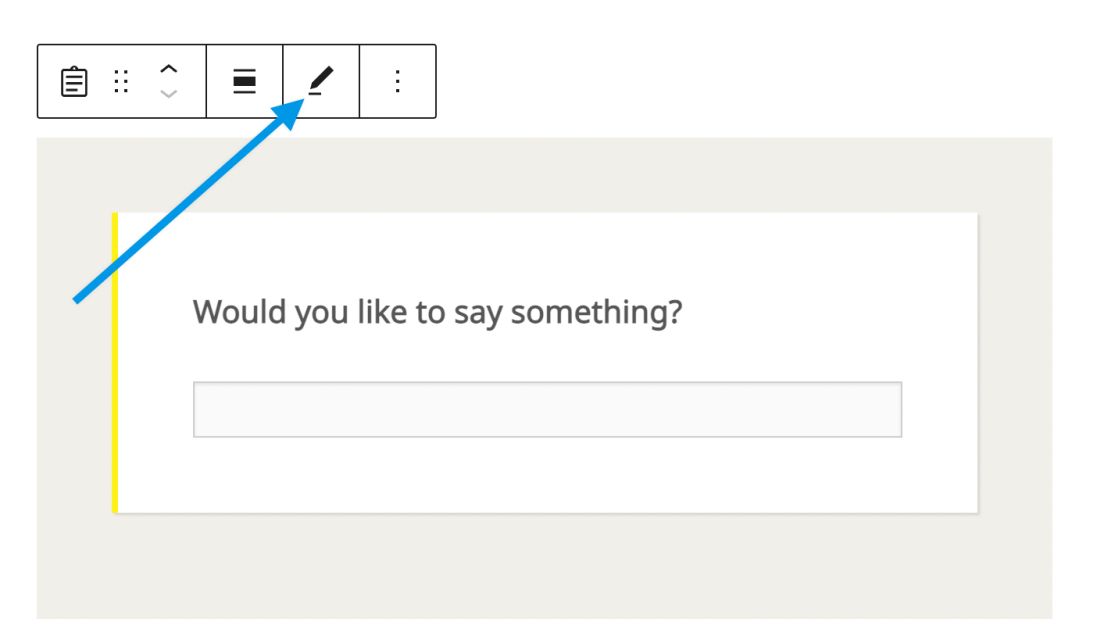
Click the Embed button in the form and the block will switch to a preview of your survey. The preview window is restricted to a certain size, we suggest previewing the page in a new tab to see exactly what the embedded survey will look like.
If you would like to change or update the link, click the edit button in the block’s toolbar to return to the form.
If the link you pasted does not correspond to a valid survey an error message will appear to let you know the link you’ve added can’t be used.
Walkthrough
If you are not familiar with creating a single or multi page survey, this walkthrough will help you get started.
The multi page mode is especially useful if you want to embed your survey using this block. Similar to an embedded video, the survey occupies just a small window on your page. And even if your survey is long, it won’t break the content structure of your page. Readers that may not be interested in the survey can quickly skip past to the rest of your content.
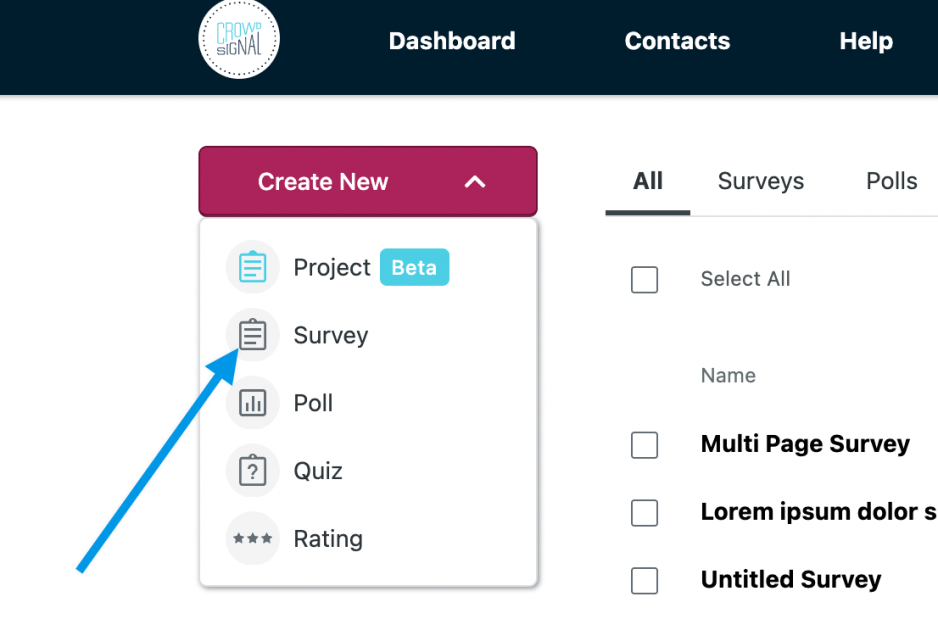
To begin, head over to your Crowdsignal dashboard and click the Create New button then select Survey.
There is a button at the top of the survey editor with the option to select single or multiple pages. Select “single”
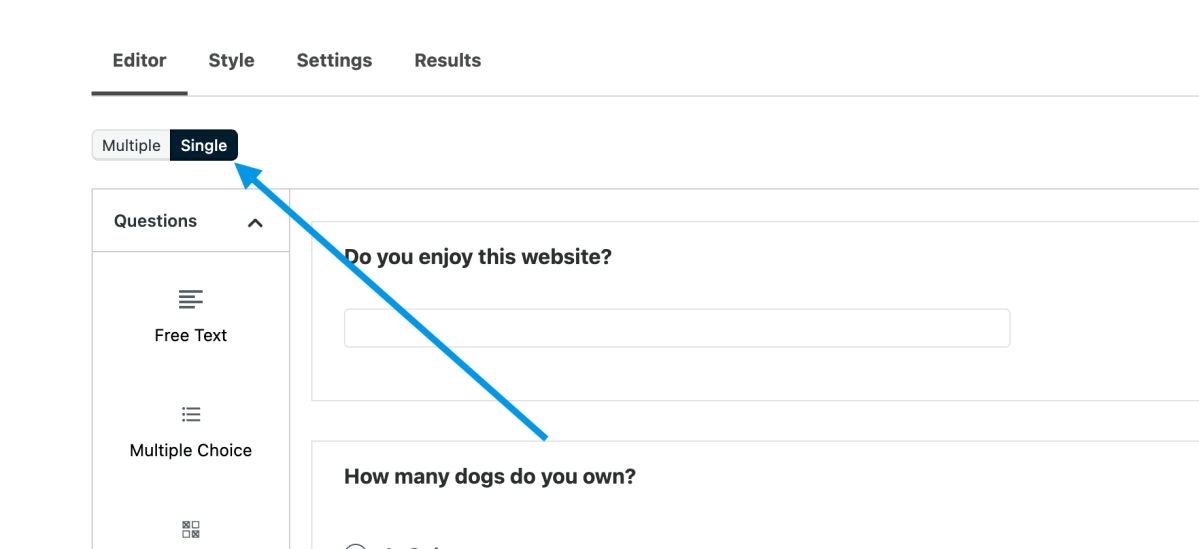
Add your questions. Each question appears in its own block in the editor. Each block will be an individual page in the final survey.
If desired, you can adjust the appearance and settings for the survey using the other tabs in the editor. When your survey is ready, click on the share button. A window will appear with a link to the survey. Copy that link to your clipboard by using the handy copy link button or manually.
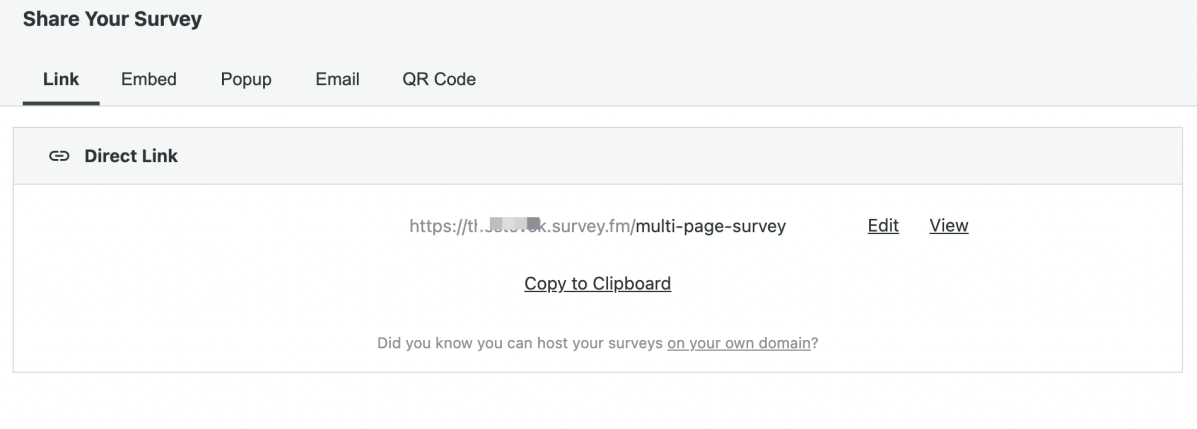
Now, head over to your WordPress editor and add the block following the directions above. Once you click embed, a preview will render in the editor showing the first page of your survey. You are now ready to publish your page or post and start collecting results from your site visitors.
 Crowdsignal